How to use Microsoft Edge's built-in secure network VPN feature
A practical guide to enabling and using Edge Secure Network VPN for safer browsing.
Edge users now have a built-in privacy option: Microsoft Edge Secure Network. This feature is a lightweight, browser-based VPN designed to route traffic through Microsoft’s network for added privacy and security. It’s not a blanket network-wide VPN for your entire device, but it’s a simple way to mask your IP and encrypt browser traffic while you’re in Edge. Below is a practical, step-by-step guide to turning it on, configuring it, and understanding what it does and does not do.
Edge Secure Network vs. Traditional VPN — Core concept and access
| Feature | Edge Secure Network | Traditional VPN | Notes |
|---|---|---|---|
| Access scope | Per-browser/OS integration | System-wide | Edge often limited to app traffic |
| Authentication | Microsoft account / Windows sign-in | VPN credentials or certificates | Varied by deployment |
| Per-site use | Yes (per-site control) | No (global) | Per-site is a key Edge feature |
| Always-on option | Available | Yes (if configured) | Depends on method |
| Encryption strength | AES-256 (standard) | AES-256 (typical) | Common baseline |
Compiled November 2026; check the provider's site for current details.
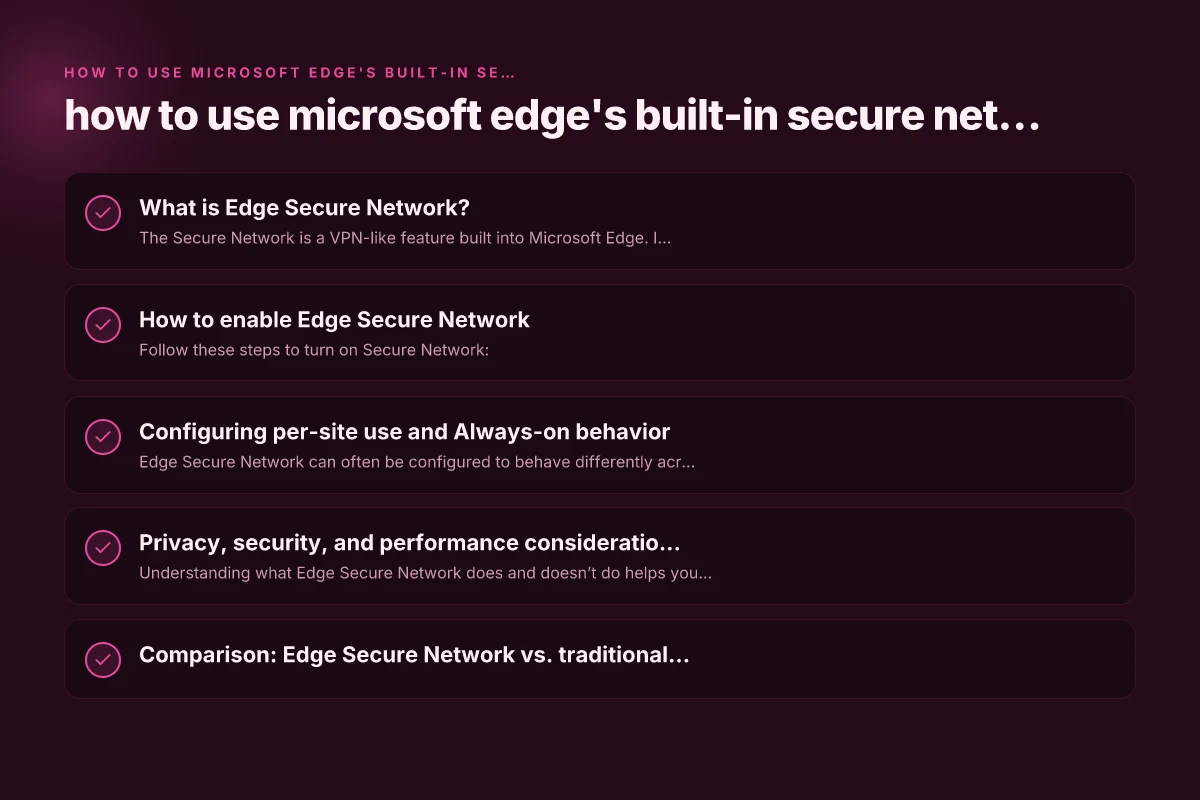
What is Edge Secure Network?
The Secure Network is a VPN-like feature built into Microsoft Edge. It:
- Encrypts traffic from the browser to websites you visit.
- Masks your real IP address when you browse in Edge.
- Uses Microsoft’s secure network infrastructure to route traffic.
Important details:
- It works in Edge only (not system-wide).
- It may require a Microsoft account to enable or sign in.
- Availability can depend on regional settings and your Edge version.
How it differs from a standalone VPN
- Scope: Edge Secure Network protects browser traffic in Edge. A traditional VPN covers all apps and services on the device.
- Per-site control: You can often set per-site behavior or choose Always use VPN for specific sites.
- Account requirements: You typically sign in with your Microsoft account to activate the feature.
How to enable Edge Secure Network
Follow these steps to turn on Secure Network:
- Open Edge and sign in with your Microsoft account if prompted.
- Click the three-dot menu (Settings and more) in the upper-right corner.
- Go to Settings.
- Navigate to Privacy, search, and services.
- Find the section labeled Microsoft Edge Secure Network (or Secure Network).
- Toggle the feature on.
If you don’t see the option, make sure your Edge browser is up to date. In some cases, features appear after the first sign-in or after enabling related privacy protections.
Quick enable checklist
- Update Edge to the latest version.
- Sign in to Edge with a Microsoft account.
- Confirm you’re in a supported region (some regions may have delayed availability).
- Turn on Secure Network in Privacy, search, and services.
Configuring per-site use and Always-on behavior
Edge Secure Network can often be configured to behave differently across websites: Download f5 big-IP Edge VPN client for Windows 10 and 11
- Always use VPN for this site: Enable for sites where you want the VPN to be active every time you visit.
- Default behavior: The VPN may be off by default for all sites unless you specify otherwise.
- Site exceptions: You can whitelist or exclude certain sites if needed.
How to set per-site rules:
- While visiting a site, look for the VPN icon or a prompt that asks if you want to turn on Secure Network for that site.
- Choose Always use VPN for this site if you want it to be automatic in future visits.
- To remove a site from the rule, revisit the site and adjust the setting or manage site lists in the Secure Network settings.
Common scenarios
- You want privacy on public Wi-Fi: Enable Always use VPN for this site or enable VPN globally for Edge sessions.
- Some sites load faster without VPN: Use per-site control to disable VPN for those sites.
- Regional content access: Be aware that VPN can affect how geo-restricted content is served. Some sites may block traffic routed through certain regions.
Setup and configuration steps comparison
| Step | Edge Secure Network (Edge) | Traditional VPN (Generic) | Complexity notes |
|---|---|---|---|
| Access panel | Edge settings | VPN client/app | Edge integrated in browser/OS |
| Enable/disable | Toggle in Edge | Start/stop service or app | Adjusts traffic routing |
| Per-site rule | Configure per site | Typically not available | Key differentiator |
| Always-on rule | Configure at policy | Often via OS policy | Edge supports on/off per device |
| Privacy controls | Basic logging controls | Varies by VPN | Check vendor policy |
| Troubleshooting | Built-in diagnostic | Client logs / server logs | Edges features aid quick diagnosis |
Compiled November 2026; check the provider's site for current details.
Privacy, security, and performance considerations
Understanding what Edge Secure Network does and doesn’t do helps you use it effectively:
- Privacy: Your browser requests are routed through Microsoft’s network, masking your IP from outside observers.
- Security: Encryption protects data between your browser and the websites you visit, especially on public networks.
- Performance: VPNs can introduce latency and reduce throughput. Expect some slower page loads on VPN-protected sessions.
- Content access: Some streaming services or sites may detect VPN usage and restrict access. If you encounter issues, try turning off VPN for that site or use per-site settings.
- Data handling: Microsoft’s privacy policy outlines what data is collected and how it’s used. Review it if you’re concerned about data use.
Comparison: Edge Secure Network vs. traditional VPN
| Aspect | Edge Secure Network | Traditional VPN |
|---|---|---|
| Scope | Browser-only (Edge) | System-wide (all apps) |
| Platform integration | Built into Edge, easy to toggle | Separate app or OS VPN settings |
| Per-site control | Often supports Always use VPN for this site | Per-app or per-site depending on client |
| Sign-in | Requires Microsoft account for some features | Account-independent in many clients |
| Performance | May add latency; typically optimized for Edge | Varies by provider; can be fast or slow depending on server and encryption |
| Privacy posture | Good for browsing privacy in Edge specifics | Broad privacy across all device traffic |
Privacy, security, and performance considerations Why your iPhone VPN keeps connecting
| Topic | Edge Secure Network | Traditional VPN | Practical takeaway |
|---|---|---|---|
| Data exfiltration risk | Low if used per-site | Higher if global tunnel | Use per-site when possible |
| DNS handling | Private DNS options | VPN DNS often set to provider | Review DNS policy |
| IP exposure | Masked by VPN when active | Typical IP change | Confirm when using Always-on |
| Speed impact | Moderate, optimized for Edge | Varies by server | Test endpoints |
| Logging policy | As per Microsoft | Vendor dependent | Read privacy terms |
| Threat surface | Browser-level risk | Network-level risk | Secure from client side |
Compiled November 2026; check the provider's site for current details.
Troubleshooting and common issues
If Secure Network isn’t behaving as expected, try these steps:
- Ensure you’re signed in with a valid Microsoft account and Edge is up to date.
- Check the Secure Network toggle in Settings → Privacy, search, and services.
- Verify per-site rules are correctly configured. Reset them if behavior is inconsistent.
- Temporarily disable other privacy or security extensions that might conflict with VPN routing.
- If sites fail to load or you suspect routing issues, turn off VPN for the site or disable Secure Network entirely to test connectivity.
If problems persist, consult Microsoft Edge support resources or the official Edge Secure Network help pages for guidance, and check community forums for user experiences in similar environments.
Security best practices when using Edge Secure Network
To maximize privacy and safety while using Edge’s built-in VPN:
- Use HTTPS whenever possible: Even with a VPN, ensure the site uses TLS (the padlock in the address bar).
- Manage permissions: Review what sites you allow to access location, camera, or other sensitive data while VPN is active.
- Update regularly: Keep Edge updated to receive the latest security patches and improvements to Secure Network.
- Combine with other protections: Consider using a reputable antivirus, firewall, and two-factor authentication for accounts accessed during browsing.
- Avoid phishing and malicious links: A VPN doesn’t protect you from social engineering or malware, still practice safe browsing.
Final recommendations
- Start with a minimal setup: Enable Secure Network and test your everyday sites to gauge speed and reliability.
- Use per-site rules: If you notice some sites load slowly or block access, switch off VPN for those sites via Always use VPN for this site or remove exceptions.
- Be mindful of content access: If you rely on geo-restricted services, test whether the VPN helps or hinders access, and adjust accordingly.
- Keep expectations realistic: Edge Secure Network provides browser-level privacy and encryption, but it is not a full device-wide VPN. For comprehensive protection across all apps, a dedicated VPN client may be more appropriate.
By following these steps and tips, you can make the most of Microsoft Edge’s built-in Secure Network VPN feature, balancing privacy, access, and performance in a way that fits your browsing habits. Does Proton VPN free actually work in China
| VPN | From / month | Plan | Free plan | Refund | Alipay | UnionPay | Crypto | Website opens in China | Trustpilot | |
|---|---|---|---|---|---|---|---|---|---|---|
 ZoogVPN | $2.49/mo | 27 months: $59.99 | Yes | 7 days | ✓ | ✓ | ✓ | ✓ | ✓ Yes (2.5 s) | 4.2/5 (195 reviews) |
 NordVPN | $3.49/mo | 27 months: $94.23 | No | 30 days | ? | ✗ | ✓ | ✓ | ✗ Blocked | 4.2/5 (51,628 reviews) |
 ExpressVPN | $3.00/mo | 28 months: $84 | No | 30 days | ✗ | ✗ | ✓ | ✗ | ✗ Blocked | 4.4/5 (29,706 reviews) |
 Surfshark | See site | See site | No | 30 days | ✗ | ✗ | ✗ | ✓ | ✗ Blocked | 4.3/5 (31,823 reviews) |
 Proton VPN | $2.99/mo | 12 months: $35.88 | Yes | 30 days | ✗ | ✗ | ✗ | ✓ | ✓ Yes (2.5 s) | 2.1/5 (1,040 reviews) |
 Astrill VPN | $12.50/mo | 24 months: $300 | No | See site | ✗ | ✗ | ✗ | ✓ | ✗ Blocked | 1.3/5 (110 reviews) |
 Private Internet Access | $2.03/mo | 40 months: $81.2 | No | 30 days | ✗ | ✗ | ✗ | ✗ | ✗ Blocked | 4.2/5 (11,033 reviews) |
 CyberGhost | $2.19/mo | 28 months: $61.32 | No | 45 days | ✗ | ✗ | ✗ | ✓ | ✗ Blocked | 4.0/5 (24,178 reviews) |
 PureVPN | $1.69/mo | 60 months: $101.55 | No | 31 days | ? | ✗ | ✗ | ✓ | ✓ Yes (2.6 s) | 4.4/5 (17,994 reviews) |
 AdGuard VPN | $2.99/mo | 24 months: $71.76 | Yes | 30 days | ✓ | ✗ | ✓ | ✓ | Official site blocked; our special link opens (2.3 s) | 4.3/5 (290 reviews) |
 Mullvad | $5.61/mo | €5/mo | No | 14 days | ✗ | ✗ | ✗ | ✓ | ✗ Blocked | 3.2/5 (192 reviews) |
 Windscribe | $5.75/mo | 12 months: $69 | Yes | See site | ✗ | ✗ | ✗ | ✓ | ✗ Blocked | 4.7/5 (13,355 reviews) |
 StrongVPN | See site | See site | No | 30 days | ✓ | ✗ | ✗ | ✗ | ✗ Blocked | 4.4/5 (2,695 reviews) |
 LightXtreme 闪连 | $7.08/mo | 12 months: $84.99 | Yes | 30 days | ✓ | ✓ | ✓ | ✓ | ✓ Yes (2.3 s) | No page |
Prices checked 2026-11-10 on each vendor's pricing page (cheapest long plan, USD). Check the vendor's checkout for the final price.
Payment methods checked 2026-11-10 on each vendor's payment pages: all 14 take cards and PayPal; ✗ = not listed, ? = the vendor's own pages disagree.
China access: whether the official website opens from mainland China networks (tests the website only, not the VPN connection). Last checked 2026-11-11 04:07 Beijing time.
Trustpilot score and review count checked 2026-11-10.

Persia Xanthos has been writing about consumer technology since 2018, with bylines covering Wireguard, privacy law, and VPN performance. Approaches each review by setting up the product the same way a typical reader would and recording every snag along the way.