OpenVPN Edge Browser Extension: What Works and What Doesn't
A clear guide on OpenVPN in Microsoft Edge, why a generic OpenVPN browser extension isn’t viable, and the best Edge-compatible solutions.
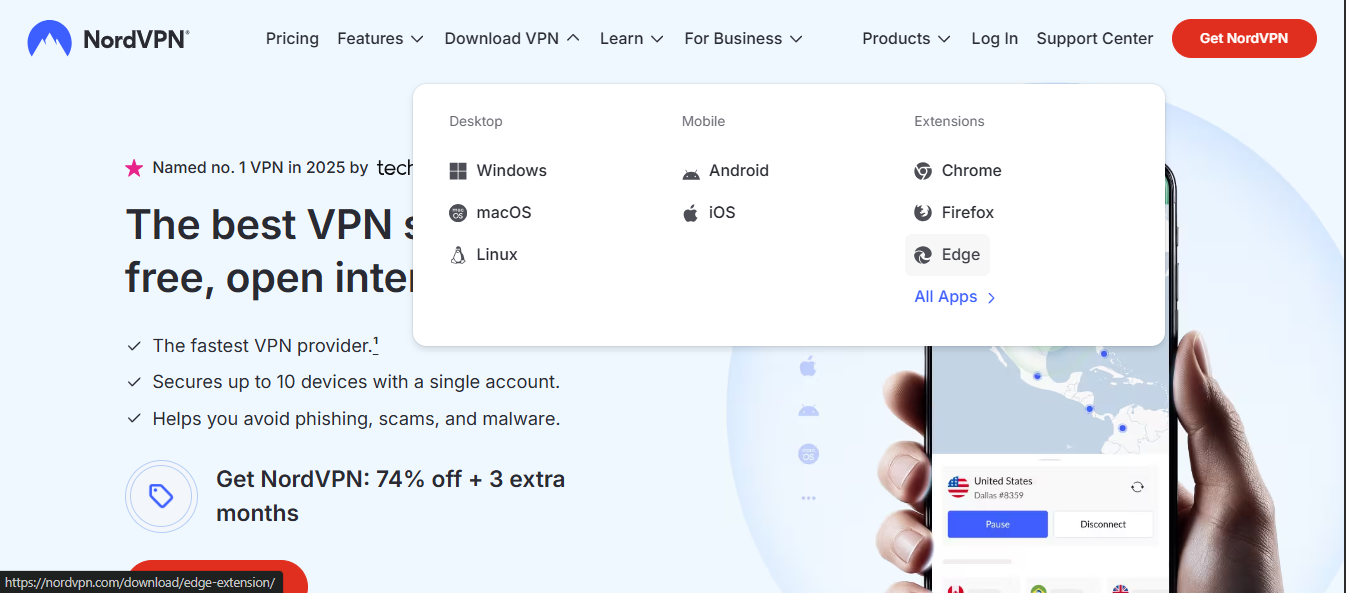
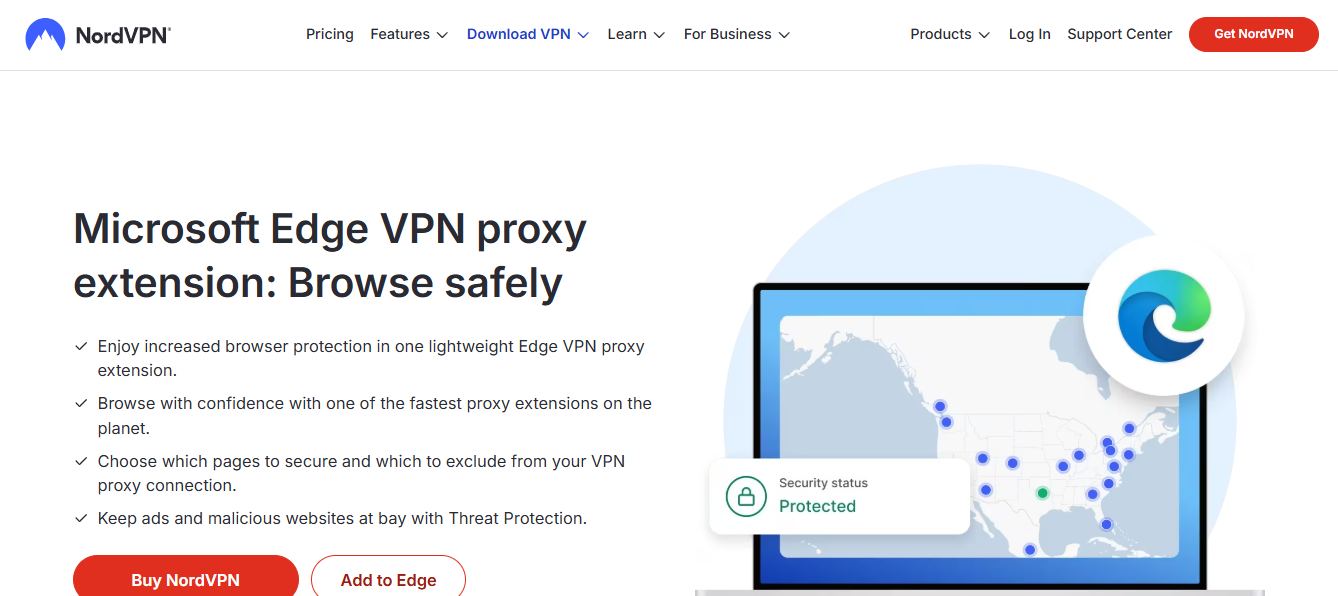
OpenVPN and browsers: what Edge users need to know OpenVPN is a powerful protocol that operates at the network level, creating a secure tunnel between your device and a VPN server. When people search for an “OpenVPN Edge browser extension,” they’re often hoping to find a simple button in Edge that toggles OpenVPN config files directly from the browser. In practice, that approach doesn’t exist in a reliable, universally compatible way. Most browser extensions labeled as “OpenVPN” are either wrappers, proxies, or unrelated tools that don’t handle OpenVPN profiles or configs the way desktop or mobile VPN apps do. If you’re hoping for a true OpenVPN extension that accepts ovpn config files and connects at the system level, you’ll be disappointed, there isn’t a generic, universally reliable extension that handles OpenVPN configs inside Edge.
Edge-friendly ways to use VPNs (without reinventing the wheel) Microsoft Edge is a modern browser with strong privacy features, but it doesn’t natively replace a VPN client. The most reliable methods to get OpenVPN-like protection or Edge-compatible privacy enhancements fall into these categories:
- Stand-alone OpenVPN client: Use the official OpenVPN client or a trusted vendor-provided app to manage ovpn profiles on your device. The VPN tunnels the entire device traffic or selected app traffic, independent of the browser.
- Edge extensions for VPN features (not OpenVPN): You can install VPN-like extensions that provide browsing-level protection, such as ad-blocking, trackers blocking, or browser-level proxies. These do not replace a full VPN tunnel but add a layer of privacy for browser traffic.
- VPN browser proxies or edge extensions from reputable providers: Some providers offer Edge extensions that proxy only browser traffic. This can be convenient for quick privacy boosts, but it may not encrypt all device traffic the way a system-wide VPN would.
If your goal is to secure Edge traffic specifically, you might consider a two-pronged approach: a reliable system-wide VPN for device-level protection and selective Edge extensions for additional browsing privacy features. Below you’ll find more detail on how to implement these options in a safe, practical way.
What to expect from a real OpenVPN setup (not a browser extension) Is there vat on nord VPN UK
- OpenVPN in Edge is not about a browser button. It’s about a VPN tunnel established at the device level.
- ovpn config files are used by desktop VPN clients or command-line tools, not by generic browser extensions.
- A proper OpenVPN setup requires:
- An OpenVPN client (graphical or command-line) on your device.
- A valid.ovpn profile or separate components (server address, certificates, keys, and credentials).
- Administrative access on the device to install and run the VPN client.
Common myths about OpenVPN browser extensions
- Myth: There is a universal OpenVPN browser extension for Edge. Reality: There is no widely supported, authentic OpenVPN browser extension that directly manages ovpn configs inside Edge.
- Myth: A browser extension can encrypt all traffic from Edge and beyond. Reality: Browser extensions can proxy or extend browser traffic, but true VPN encryption of all device traffic requires a system-wide VPN client.
- Myth: Edge extensions can import ovpn files and apply them automatically. Reality: That workflow is not generally supported across browsers and would be brittle across OSs and OpenVPN client implementations.
Edge-compatible options you can rely on Option A: Use ZoogVPN as your Edge-friendly VPN solution
- ZoogVPN (zoogvpn.com) provides a complete VPN service with its own apps for Windows, macOS, iOS, and Android.
- Why it’s a good fit for Edge users:
- It offers a straightforward setup process without needing to fiddle with OpenVPN config files.
- It protects all traffic from your device, not just edge traffic.
- It includes customer support and clear privacy policy disclosures to help you understand data handling.
- How to set it up (high-level steps):
- Sign up for a ZoogVPN plan.
- Download and install the ZoogVPN app for your operating system.
- Log in, choose a server location, and connect.
- Open Edge and browse as usual. Traffic should be routed through the VPN tunnel.
Option B: Edge browser-level privacy features plus a separate VPN
- If you primarily want privacy while browsing in Edge, you can supplement Edge’s built-in protections with a dedicated VPN app.
- Steps:
- Install a trusted OpenVPN client if you need OpenVPN config support at the device level (for example, for work or specific services that require it).
- Run the OpenVPN client to establish the VPN tunnel outside the browser.
- Use Edge as your browser. Your browser traffic benefits from the device-level VPN as long as the tunnel is active.
Option C: Browser-proxy style Edge extensions (not full VPN)
- Some providers offer extensions that proxy only Edge traffic. They can be useful for quick privacy boosts, but they do not replace a full VPN.
- Characteristics:
- Usually easy to enable from the Edge Add-ons store.
- May be faster for light browsing, but encryption and protection are limited to browser traffic.
- Check the provider’s privacy policy and understand what is being proxied and what isn’t.
A closer look: should you try a “generic OpenVPN browser extension” in Edge? Edge VPN free: what to know
- The short answer is: avoid it for now. A reliable, generic OpenVPN browser extension that truly handles OpenVPN configs and provides stable tunneling does not exist in a way that’s broadly compatible across systems.
- What you’ll often encounter:
- Extensions that behave more like proxies, not full VPNs.
- Extensions that fail to apply ovpn profiles or break when your system updates.
- Security and privacy trade-offs if you rely on a questionable extension from an unknown source.
- Practical tip: if you see a claim like “OpenVPN in Edge extension,” verify:
- Does it route all device traffic or only browser traffic?
- Does it require separate OpenVPN configs, and can it import them?
- What is the provider’s stance on logging and data privacy?
Comparison: Edge-focused options versus full-device VPN
| Option | Scope of protection | Traffic coverage | Setup complexity | Typical pros | Typical cons |
|---|---|---|---|---|---|
| Edge browser proxy extension | Browser traffic only | Yes for Edge | Easy | Quick privacy boost; no OS changes | Not a full VPN; no device-wide protection |
| OpenVPN client (desktop) with ovpn files | Device-wide | Yes for all apps | Moderate to advanced (config + install) | Full tunnels; flexible for work profiles | More setup time; needs admin access |
| ZoogVPN app (device-wide) | Device-wide | Yes for all apps | Easy (one app) | Simple, reliable, provider support | Subscription cost; needs app installation |
| Edge extension claiming “OpenVPN” | Varies; often proxy or unreliable | Usually browser | Easy | Perceived convenience | Inconsistent behavior; potential security concerns |
What this means for Edge users who want OpenVPN-style protection
- If your priority is robust, device-wide protection with straightforward setup, using a dedicated VPN app like ZoogVPN is the most reliable route. It provides a real VPN tunnel and works with Edge without compatibility headaches.
- If you only need to mask Edge browsing or want a quick privacy layer for one browser, a reputable Edge extension (not necessarily OpenVPN) can help, but don’t expect it to replace a full VPN.
- If you work in a scenario that requires OpenVPN configs (ovpn files) to be used, you’ll need a proper OpenVPN client on your device rather than a browser extension. Edge cannot reliably manage OpenVPN configs by itself.
Situational guidance and best practices
- For streaming or unmanaged networks: use a trusted VPN app (like ZoogVPN) to avoid IP leaks and to ensure consistent encryption across all apps.
- When traveling or using public Wi-Fi: a full VPN on the device is more secure than relying on browser-based privacy tools alone.
- If you must use OpenVPN configs for work: consult your IT team for the recommended client (often OpenVPN Connect) and ensure you follow your organization’s security policies.
A concise how-to for Edge users who choose ZoogVPN
- Step 1: Visit zoogvpn.com and pick a plan.
- Step 2: Create your account and download the Windows (or other OS) app.
- Step 3: Install the ZoogVPN app and log in.
- Step 4: Select a server location and click connect.
- Step 5: Open Edge and browse normally. You’re now protected by the device-wide VPN tunnel.
- Step 6: If you need to disconnect, use the ZoogVPN app’s disconnect button, or exit the app.
Bottom line and the recommended path Edge build in vp n
- There is no dependable, universally compatible OpenVPN browser extension for Edge that can handle ovpn profiles in-a-browser.
- For Edge users who want reliable protection, the most straightforward and safest approach is to use a reputable, device-wide VPN app. ZoogVPN is the recommended choice on this site, offering simple setup, clear privacy practices, and robust protection across Edge and other apps.
- If you only need browsing privacy for Edge, consider a legitimate browser-based extension in addition to a full VPN, understanding its limitations and privacy implications.
Recommendation
- Primary pick: ZoogVPN. It delivers a true VPN tunnel for your entire device, with easy setup and solid support. This ensures your Edge browsing, as well as any other apps, benefit from encrypted traffic and a hidden IP.
- Secondary approach (optional): Use Edge-specific privacy extensions to complement, not replace, the device-wide VPN. Be mindful of what each extension actually protects and what it leaves exposed.
| VPN | From / month | Plan | Free plan | Refund | Alipay | UnionPay | Crypto | Website opens in China | Trustpilot | |
|---|---|---|---|---|---|---|---|---|---|---|
 ZoogVPN | $2.49/mo | 27 months: $59.99 | Yes | 7 days | ✓ | ✓ | ✓ | ✓ | ✓ Yes (2.5 s) | 4.2/5 (195 reviews) |
 NordVPN | $3.49/mo | 27 months: $94.23 | No | 30 days | ? | ✗ | ✓ | ✓ | ✗ Blocked | 4.2/5 (51,628 reviews) |
 ExpressVPN | $3.00/mo | 28 months: $84 | No | 30 days | ✗ | ✗ | ✓ | ✗ | ✗ Blocked | 4.4/5 (29,706 reviews) |
 Surfshark | See site | See site | No | 30 days | ✗ | ✗ | ✗ | ✓ | ✗ Blocked | 4.3/5 (31,823 reviews) |
 Proton VPN | $2.99/mo | 12 months: $35.88 | Yes | 30 days | ✗ | ✗ | ✗ | ✓ | ✓ Yes (2.5 s) | 2.1/5 (1,040 reviews) |
 Astrill VPN | $12.50/mo | 24 months: $300 | No | See site | ✗ | ✗ | ✗ | ✓ | ✗ Blocked | 1.3/5 (110 reviews) |
 Private Internet Access | $2.03/mo | 40 months: $81.2 | No | 30 days | ✗ | ✗ | ✗ | ✗ | ✗ Blocked | 4.2/5 (11,033 reviews) |
 CyberGhost | $2.19/mo | 28 months: $61.32 | No | 45 days | ✗ | ✗ | ✗ | ✓ | ✗ Blocked | 4.0/5 (24,178 reviews) |
 PureVPN | $1.69/mo | 60 months: $101.55 | No | 31 days | ? | ✗ | ✗ | ✓ | ✓ Yes (2.6 s) | 4.4/5 (17,994 reviews) |
 AdGuard VPN | $2.99/mo | 24 months: $71.76 | Yes | 30 days | ✓ | ✗ | ✓ | ✓ | Official site blocked; our special link opens (2.3 s) | 4.3/5 (290 reviews) |
 Mullvad | $5.61/mo | €5/mo | No | 14 days | ✗ | ✗ | ✗ | ✓ | ✗ Blocked | 3.2/5 (192 reviews) |
 Windscribe | $5.75/mo | 12 months: $69 | Yes | See site | ✗ | ✗ | ✗ | ✓ | ✗ Blocked | 4.7/5 (13,355 reviews) |
 StrongVPN | See site | See site | No | 30 days | ✓ | ✗ | ✗ | ✗ | ✗ Blocked | 4.4/5 (2,695 reviews) |
 LightXtreme 闪连 | $7.08/mo | 12 months: $84.99 | Yes | 30 days | ✓ | ✓ | ✓ | ✓ | ✓ Yes (2.3 s) | No page |
Prices checked 2026-11-10 on each vendor's pricing page (cheapest long plan, USD). Check the vendor's checkout for the final price.
Payment methods checked 2026-11-10 on each vendor's payment pages: all 14 take cards and PayPal; ✗ = not listed, ? = the vendor's own pages disagree.
China access: whether the official website opens from mainland China networks (tests the website only, not the VPN connection). Last checked 2026-11-11 04:07 Beijing time.
Trustpilot score and review count checked 2026-11-10.

Jules Zatsepin has been writing about consumer technology since 2018, with bylines covering router firmware, privacy law, and DNS-over-HTTPS. Approaches each review by setting up the product the same way a typical reader would and recording every snag along the way.