Clash for iOS: How to Choose and Set Up a Client
Find a Clash-compatible iOS client, check its requirements, and learn the basic steps for importing a configuration and connecting.
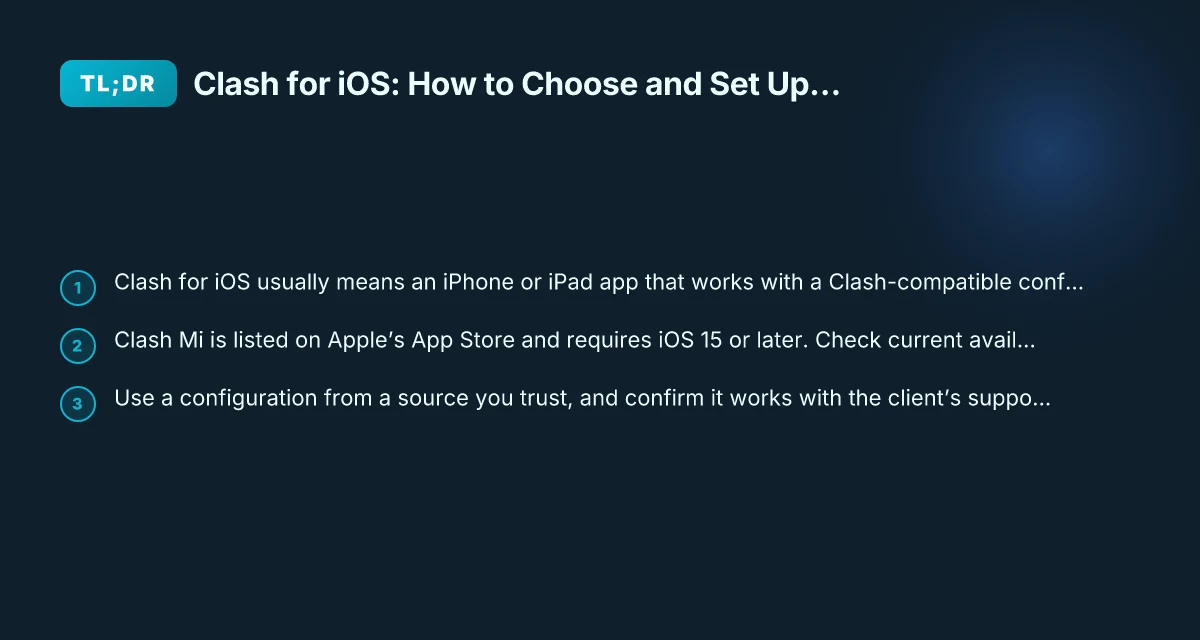
If you are looking for Clash for iOS, start by choosing an iPhone or iPad client that supports your configuration. One option in the current search results is Clash Mi, described on Apple’s App Store as a rule-based network proxy tool. It requires iOS 15 or later on iPhone, or iPadOS 15 or later on iPad. The KaringX project also lists Clash Mi as a cross-platform client built around the Mihomo core. App availability and features can change, so verify details in the App Store or project page before installing.
Compare the main kinds of “Clash for iOS” search results
| Option | What it is | What to check | Setup effort | Main consideration |
|---|---|---|---|---|
| Official app listing | App Store result | Developer and app details | Low | Confirm it is the intended client |
| Third-party client | Separate app using Clash-compatible configurations | Protocol and format support | Medium | Features can differ |
| Configuration provider | Service offering configuration files or links | Provider identity and terms | Medium | Trust the source |
| Configuration file | Settings imported into a client | Format and compatibility | Low | A file is not an app |
| Subscription link | Link that can update configurations | Client support and source | Low | Keep the link private |
| Tutorial or guide | Instructions, not an installable client | Date and iOS version | Low | Steps may be outdated |
| Unrelated search result | Product with a similar name | Whether it supports Clash configurations | Varies | Name alone does not prove compatibility |
Compiled November 2026; check the provider's site for current details.
What “Clash for iOS” means
“Clash” can refer to a family of proxy clients and compatible configuration files, rather than one universal iOS app. A client provides the interface for importing settings, selecting rules or profiles, and starting a connection. The configuration tells the client how to handle network traffic.
Compatibility matters. A configuration may be designed for a particular core or format, and not every iOS app supports every feature. The search results identify Clash Mi as a rule-based client and describe its core as Mihomo, also known as Clash.Meta. That information is a useful starting point, but it does not guarantee that every configuration will work as intended.
Before choosing an app, check:
- Whether it supports your iOS or iPadOS version.
- Which core and configuration formats it uses.
- Whether it can import the configuration you already have.
- Whether the app’s current listing and developer information look legitimate.
Comparing the options in the search results
The results include both an App Store listing and project or download pages. They are not interchangeable: an app listing is where you check an app’s current requirements, while a project page can provide technical details and updates.
| Option | What the search results say | What to check |
|---|---|---|
| Clash Mi on the App Store | Described as a simple, rule-based network proxy tool; requires iOS 15 or later and iPadOS 15 or later | Current availability, app details, and whether it supports your configuration |
| KaringX/Clashmi on GitHub | Describes a cross-platform Clash Mihomo client with a built-in Mihomo core | Installation guidance, supported platforms, and project updates |
| Clash iOS download page | Listed as a page for Clash iOS downloads | Confirm what is being offered and whether it is appropriate for your device |
| Clash Network developer page | Shows a developer’s apps on the App Store | Check the specific app listing; a developer page alone does not confirm compatibility |
Do not assume that a download page or a similarly named project is the official iOS client you need. Confirm the app’s identity and installation method before proceeding. VPN Free: How to Choose a Free VPN That Protects Your Privacy
How to get started on an iPhone or iPad
A typical setup has three parts: install a compatible client, import a configuration, and allow the app to create a local VPN connection if iOS requests permission.
- Check your device version. Compare your iPhone or iPad’s software version with the app’s current requirements. Clash Mi’s listing in the search results specifies iOS 15 or later for iPhone and iPadOS 15 or later for iPad.
- Install from a source you trust. Use the App Store listing when available, or follow the project’s own instructions. Avoid unknown download links and installation profiles.
- Get a configuration from a trusted provider or administrator. The client cannot supply a working configuration by itself. Make sure the file or subscription link is intended for the app and core you chose.
- Import the configuration. Follow the client’s in-app instructions. If importing fails, check the link or file and confirm its format is supported.
- Review the settings, then connect. iOS may ask you to approve adding a VPN configuration. Read the permission prompt and only approve it if you recognize the app and understand why it needs access.
- Test the connection. Check whether the client reports an active connection and whether the services you need work. Disconnect if you see unexpected behavior.
Menu names and setup flows differ by app and version, so use the current app documentation when the steps on your screen do not match.
Choose a setup path for iPhone or iPad
| Starting point | Best next step | What you need | Key check | Good fit when |
|---|---|---|---|---|
| App already installed | Review its import options | Compatible configuration | App supports the format | You have a trusted configuration |
| No app installed | Check relevant App Store listings | iPhone or iPad | Developer and compatibility details | You want an iOS client |
| Configuration file available | Import the file in the client | File access | Format is supported | You received a file from a trusted source |
| Subscription link available | Add the link in the client | Private subscription URL | Client supports link updates | Your provider supplies a link |
| Unsure which client to use | Compare features and documentation | Candidate app names | Import and update support | Search results are confusing |
| iPad setup | Follow the iOS client’s instructions | Compatible app and configuration | iPad compatibility | You prefer a larger screen |
| Configuration not available | Ask the provider for setup details | Provider contact or instructions | Correct file or link | You need a legitimate configuration |
Compiled November 2026; check the provider's site for current details.
Choosing a configuration and staying safe
A configuration can direct or otherwise affect how your traffic is handled. Treat subscription links and configuration files like sensitive information: someone who obtains them may be able to use or inspect account-related details, depending on how the service is designed. Cj.cj.net VPN: What the Website Is and How to Find VPN Partner Information
Use these safeguards:
- Obtain configuration details only from a provider or administrator you trust.
- Avoid posting subscription URLs or configuration files publicly.
- Check which traffic and services the configuration is intended to handle.
- Remove a profile you no longer use, especially if you no longer trust its source.
- Keep the app and your device software updated.
- Review the provider’s privacy and security information before relying on its service.
A client’s presence in an app store or repository does not, on its own, establish that a configuration source is safe or that a service is suitable for every purpose.
Troubleshooting common setup problems
If the app will not install, first check the device’s operating-system version and the current requirements shown on the app listing. If the app opens but cannot import a profile, confirm that the link or file is complete and compatible with the client. A configuration built for Mihomo may not behave identically in a different core or client.
If import succeeds but the connection does not work:
- Confirm that the profile is current and that your provider has not changed it.
- Check the app’s connection status and any error messages.
- Recheck iOS permissions for the app’s VPN connection.
- Try the provider’s recommended settings or contact its support team.
- Avoid adding multiple profiles or changing advanced rules unless you understand their effect.
For ongoing errors, consult the app’s documentation and the configuration provider rather than relying on an unrelated tutorial. Tutorials can become outdated as apps and operating systems change. Free VPN With Country Selection: What to Know Before You Choose
Safety and troubleshooting decision guide
| Situation | First check | Safer action | Avoid | When to seek help |
|---|---|---|---|---|
| App identity is unclear | Listing developer and details | Verify through official sources | Installing by name alone | Listing remains ambiguous |
| Configuration source is unknown | Sender and provider | Use a source you trust | Importing unsolicited files | Source cannot be verified |
| Subscription link is exposed | Where it was shared | Replace or revoke it if possible | Posting it publicly | Provider offers account support |
| Import fails | File or link format | Check client compatibility | Repeatedly importing the same item | Documentation does not resolve it |
| Connection does not work | Configuration and app status | Recheck settings with provider guidance | Guessing at unknown values | Provider or client support is available |
| Configuration stops updating | Link validity and client support | Confirm update instructions | Sharing the link to troubleshoot publicly | Provider confirms a service issue |
| App behaves unexpectedly | App version and permissions | Consult app documentation | Installing unverified profiles | The issue persists after documented checks |
Compiled November 2026; check the provider's site for current details.
Recommendation
For a straightforward starting point, check Clash Mi’s current App Store listing and confirm that your device meets its requirements. If you are using a Mihomo-based configuration, compare it with the client’s documented support before importing. Choose a trusted source, review iOS permission prompts, and follow the app’s latest setup instructions rather than assuming every app called “Clash” works the same way.

Ezekiel Saavedra has been writing about consumer technology since 2018, with bylines covering streaming geo-unblocking, P2P networking, and router firmware. Approaches each review by setting up the product the same way a typical reader would and recording every snag along the way.