How to completely uninstall nordpass and clean up your devices
A thorough, step-by-step guide to fully removing NordPass and residual traces from your devices.
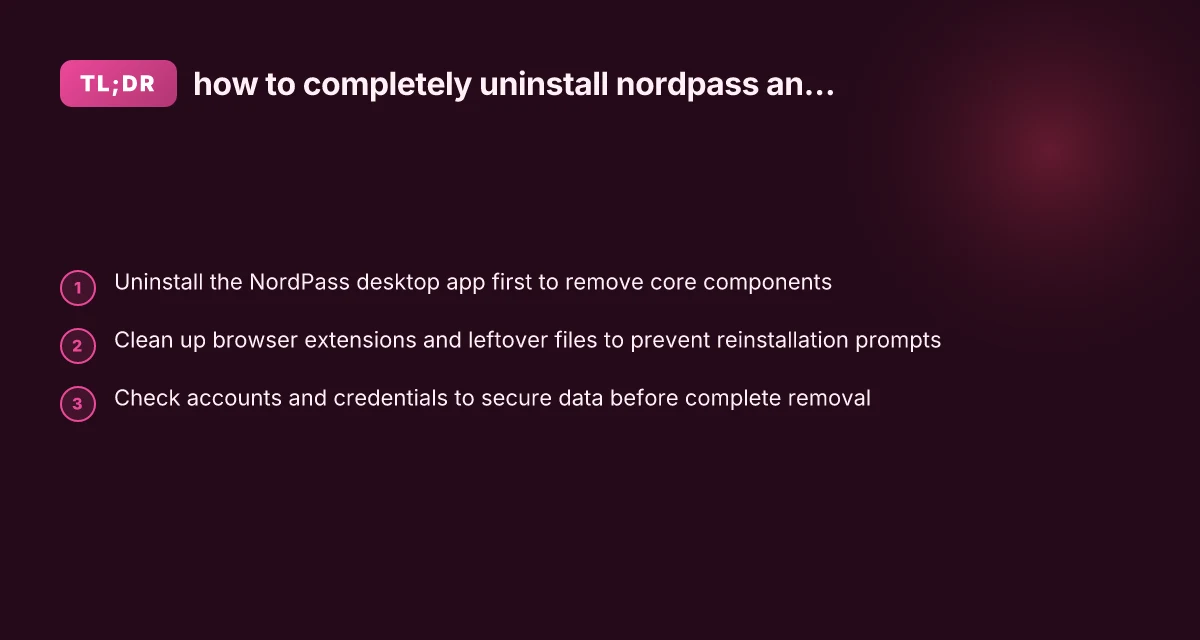
Uninstalling NordPass ends with more than just removing the app. If you want to completely erase NordPass and leave no lingering folders or extensions behind, you’ll need to follow a careful sequence: remove the desktop application, clear out browser extensions, and clean up any leftover data like caches or AppData folders. Below is a practical, device-wide guide to help you get NordPass off your system and reduce the chances of hidden remnants reappearing.

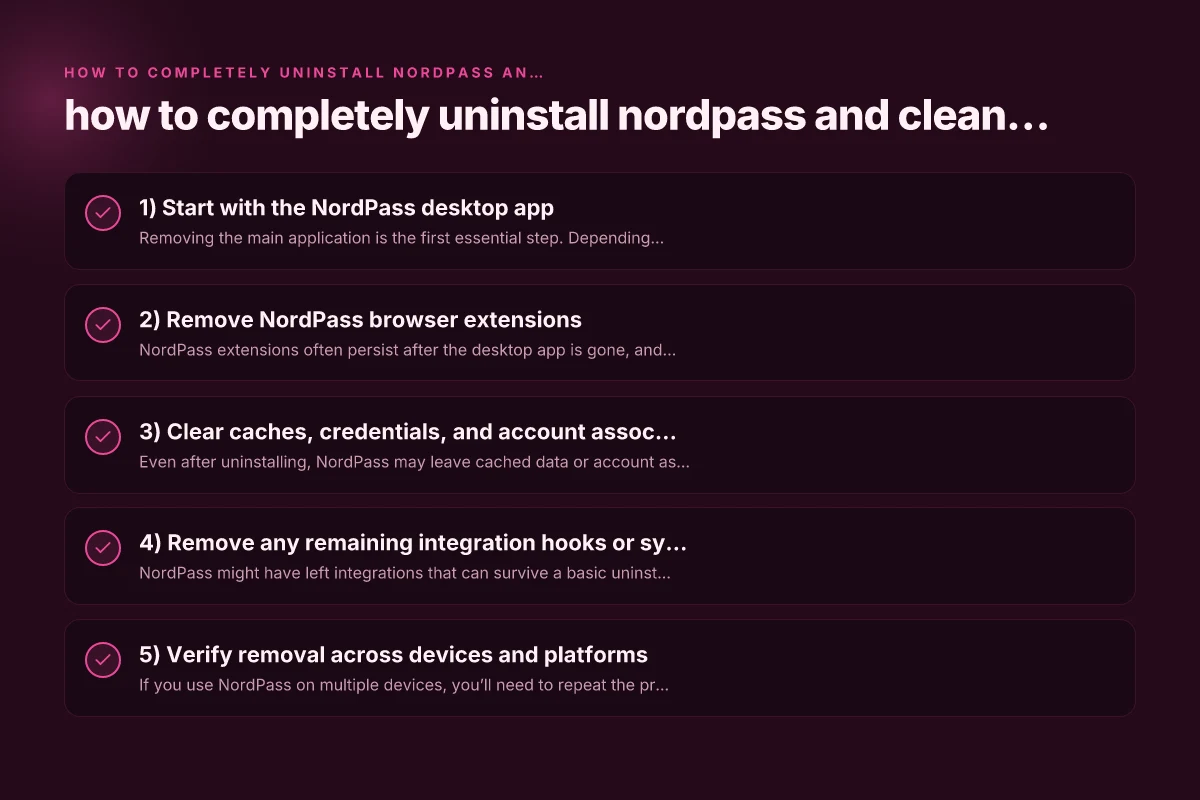
1) Start with the NordPass desktop app
Removing the main application is the first essential step. Depending on your operating system, the process varies slightly, but the goal is the same: remove the program and then address any leftovers.
Windows
- Open Settings > Apps.
- Find NordPass in the list and select Uninstall.
- Follow the prompts to complete removal.
- After uninstalling, check these common leftover locations:
- C:\Program Files\nordpass
- C:\Users<YourUsername>\AppData\Roaming\nordpass
- C:\Users<YourUsername>\AppData\Local\nordpass
- If you see NordPass-related folders, delete them to prevent reinstallation prompts or data residue.
MacOS
- Open Finder > Applications.
- Drag NordPass to the Trash, or right-click and Choose Move to Trash.
- Empty the Trash.
- Check for leftover files in:
- /Library/Application Support/NordPass
- ~/Library/Application Support/NordPass
- ~/Library/Caches/com.nordpass.NordPass
- Remove any NordPass-related launch agents or preference files if present.
Linux
- If you installed via snap: sudo snap remove nordpass
- If you installed via a package or direct binary, use your distro’s package manager to remove NordPass.
- Look for residual directories like:
- ~/.local/share/nordpass
- ~/.config/nordpass
- /usr/local/share/nordpass
TIP: If you’re unsure where NordPass stored files on your system, a quick search for “nordpass” in your user directory can reveal hidden leftovers to remove.
2) Remove NordPass browser extensions
NordPass extensions often persist after the desktop app is gone, and they can auto-fill credentials or prompt for sign-ins again.
Chrome, Edge, and Chromium-based browsers
- Open the browser menu > More tools > Extensions.
- Locate NordPass Extension(s) and remove:
- Click Remove or Uninstall.
- Optional: Clear any cached data NordPass may have stored in the browser.
- You can also go to chrome://extensions/ and verify there are no NordPass entries left.
Firefox
- Menu > Add-ons > Extensions.
- Remove NordPass Extension.
- Restart the browser to complete the cleanup.
Safari
- Safari > Preferences > Extensions.
- Select NordPass and Uninstall.
TABLE: Browser extension cleanup comparison
| Browser type | How to remove | Post-removal check |
|---|---|---|
| Chrome/Chromium | Extensions page > Remove NordPass | Confirm no NordPass extension listed; restart browser |
| Firefox | Add-ons > Extensions > Remove | Restart browser; clear related data if prompted |
| Safari | Extensions > Uninstall | Ensure no NordPass extension remains in preferences |
3) Clear caches, credentials, and account associations
Even after uninstalling, NordPass may leave cached data or account associations that could reappear if reinstalled. How to download f5 big-IP Edge VPN client for Mac
Clear application caches and data
- Windows: Delete relevant cache folders, typically in AppData or LocalAppData as applicable.
- macOS: Remove caches under ~/Library/Caches and any NordPass-specific folders.
- Linux: Check ~/.cache and related NordPass directories.
Sign out of you NordPass account (before deletion)
If you haven’t deleted your NordPass account yet but plan to, sign out from any devices where you still have NordPass active to minimize cross-device syncing oddities.
Revoke or rebind device access (optional)
- Log in to the NordPass web vault (if you still have access) and review active devices.
- Revoke access from devices you no longer own or use.
- If you’re fully decommissioning NordPass, consider deleting your NordPass account for complete data erasure (note: this is irreversible).
4) Remove any remaining integration hooks or system traces
NordPass might have left integrations that can survive a basic uninstall, especially if you’ve used it across multiple devices.
Check startup items and services
- Windows: Task Manager > Startup tab. Look for NordPass entries and disable/uninstall.
- macOS: System Preferences > Users & Groups > Login Items. Remove NordPass if present.
- Linux: Check systemd services or startup scripts that may call NordPass components.
Check system-wide environment references
- Open a terminal or command prompt and search for NordPass references:
- Windows: dir /s /b "C:\ProgramData\nordpass" or use a search for nordpass in ProgramData, AppData, or CommonFiles.
- macOS/Linux: grep -r "nordpass" /etc /usr /opt /var 2>/dev/null
Clean up scheduled tasks or cron jobs
If you configured NordPass to run at intervals, delete those entries to avoid stray attempts to launch.
5) Verify removal across devices and platforms
If you use NordPass on multiple devices, you’ll need to repeat the process on each device. Consistency helps prevent future prompts or accidental sign-ins.
Common pitfalls to watch for
- Remaining extensions re-enabling themselves after a browser update.
- Residual folders reappearing after a system cleanup or OS refresh.
- Data caches re-storing credentials if you reuse a password vault pattern in your browser.
Quick verification checklist
- NordPass desktop app is not installed.
- NordPass browser extensions are removed.
- No NordPass folders exist in AppData, Library, or home directories.
- No NordPass processes appear in Task Manager, Activity Monitor, or ps output.
- Your NordPass account is untouched (if you want to keep it) or deleted (if you intend full removal).
6) If you want to keep using NordPass in a limited way
If your aim is not to uninstall entirely but to prevent accidental auto-fill or to start fresh, consider these lighter steps: What is Microsoft Edge VPN
- Disable the NordPass extension instead of removing it.
- Sign out from NordPass on all devices and disable syncing.
- Use a different password manager or a browser-generated password feature for a transitional period.
TABLE: Full uninstall vs. partial cleanup
| Approach | What gets removed | Typical use case |
|---|---|---|
| Full uninstall | Desktop app, browser extensions, caches, residual folders | You’re discontinuing NordPass entirely and want no traces |
| Partial cleanup | Extensions disabled or removed, minimal data cleared | You want to stop auto-fill but keep NordPass installed for future use |
Final section: recommendation If your goal is to ensure NordPass is truly gone from your devices, follow the full uninstall sequence and perform a thorough search for leftovers. Start with removing the desktop app, then delete browser extensions, and finally clean up caches and AppData-like directories. This reduces the chance of any stale data or prompts reappearing if you ever decide to reinstall or switch to another password manager.
If you’re unsure about deleting your NordPass account, consider whether you need permanent deletion or simply want to disengage the service. Deleting your account is irreversible, so back up any data you might want to keep before proceeding. For most users who want a clean slate, a complete uninstall combined with removal of extensions and caches provides the safest path to a clean device state.

Kira Zilberman has been writing about consumer technology since 2018, with bylines covering router firmware, P2P networking, and secure messaging. Approaches each review by setting up the product the same way a typical reader would and recording every snag along the way.