Keepass not showing on screen
Practical steps to diagnose and fix KeePass when its GUI won’t appear on screen.
KeePass is a reliable password manager, but users occasionally face a frustrating issue: KeePass not showing on screen even though the program appears to run in the background. This guide walks you through the most common causes and fixes, so you can regain visibility of the KeePass GUI and access your vault.

Quick comparison of KeePass visibility issues by cause
| Cause | Symptom | Typical Fix | Notes |
|---|---|---|---|
| Window is off-screen | Window open but not visible | Move/resize window with Alt+Space, M, Arrow keys | May occur after monitor layout change |
| Window minimized | Trayed or taskbar minimized | Restore window from taskbar or Alt+Tab | Could hide if taskbar auto-hide |
| DPI scaling mismatch | Blurry or tiny UI | Reset display scale to 100% or same on all monitors | High DPI can affect dialog placement |
| Invisible overlay | Dialog exists but not drawn | Update graphics driver; disable hardware acceleration | Rare, driver dependent |
| Multiple KeePass windows | More than one instance shows | Close all; reopen single instance | Conflicts with auto-start |
| Foreground lock | Window present but not focus | Alt+Tab to KeePass; ensure not behind other windows | Focus order issue |
| Remote session constraints | Window not shown on remote | Enable/allow GUI on remote; use console session | RDP/VNC limitations |
Compiled November 2026; check the provider's site for current details.
Understanding why KeePass might not show on screen
Several scenarios can cause KeePass to seem invisible:
- The window is off-screen due to multi-monitor setups or display changes.
- The GUI process is running, but the window is minimized or hidden behind other windows.
- Remote sessions or display capture settings prevent KeePass from rendering.
- A startup or plugin issue causes the GUI to fail to initialize.
Knowing which scenario fits your setup helps you pick the right fix quickly.
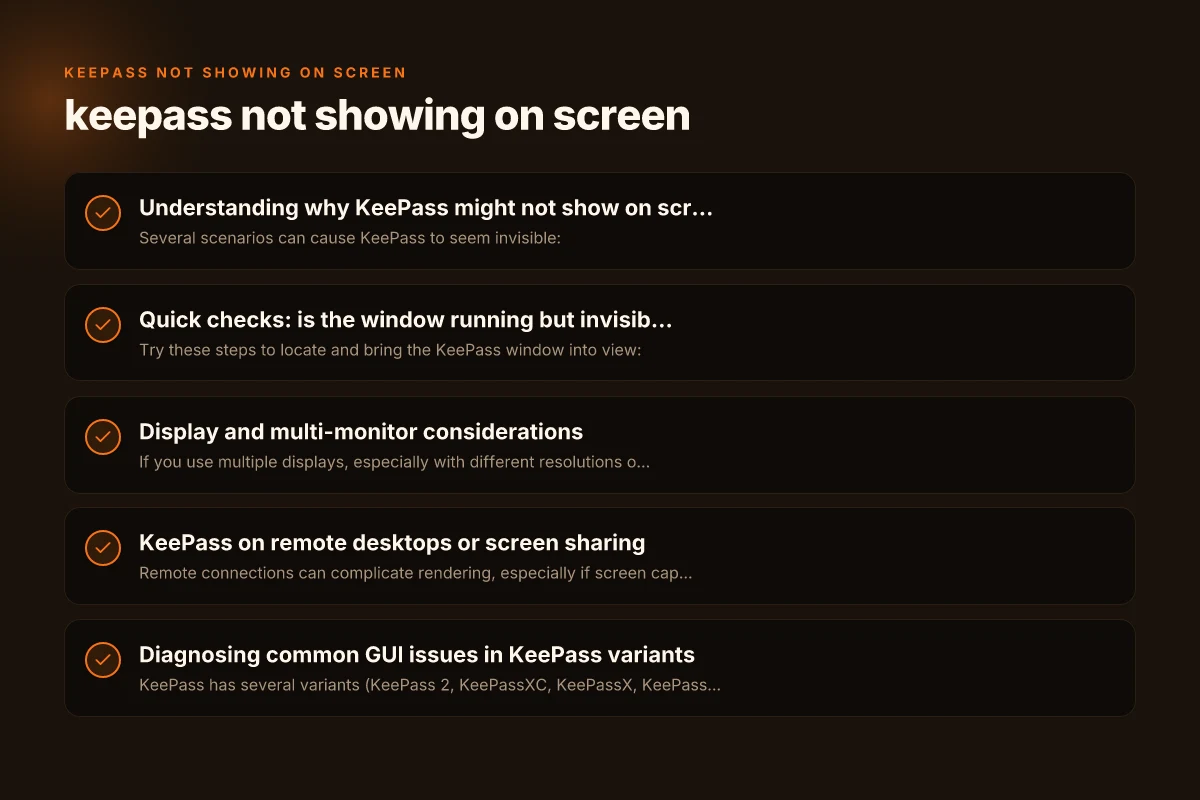
Quick checks: is the window running but invisible?
Try these steps to locate and bring the KeePass window into view:
- Look in the taskbar (Windows) or dock (macOS). If KeePass is listed, it’s running.
- Use Alt-Tab (Windows) or Command-Tab (macOS) to cycle to KeePass. If you can see a faint window outline, drag it back into view.
- Right-click the KeePass taskbar/dock icon and choose Restore or Bring to Front if available.
- On Windows, press Alt-Space, then M (Move). Use arrow keys or the mouse to reposition the window, then Enter to lock it in place.
If the window can’t be found, you may be dealing with a window that is entirely off-screen due to a monitor configuration change. In such cases, resetting the window position is often the fastest cure.
Quick checks: is KeePass running but invisible? Is shelly compatible with philips hue
| Check | Action | Expected result | Possible outcome |
|---|---|---|---|
| Task Manager | Look for KeePass or KeePassXC process | Process running | Yes / No; if No, app not started |
| Alt+Tab cycle | Switch windows | KeePass appears in cycle | Visible or not |
| Windows taskbar | Look for KeePass icon | Icon present | Click to restore window |
| Window list (Alt+Space) | Move/size window | Window becomes visible | Able to bring up on screen |
| Screen edges | Drag from edges | Window repositions on screen | Could be off-screen again |
| Display settings | Check multiple displays | Same or clone mode | Fix by adjusting display order |
| Transparency apps | Check for window transparency | Not transparent or hidden | Disable if needed |
Compiled November 2026; check the provider's site for current details.
Display and multi-monitor considerations
If you use multiple displays, especially with different resolutions or when unplugging a projector, KeePass windows can “drift” off-screen. Try these steps:
- Disconnect extraneous monitors temporarily and relaunch KeePass to see if the window appears on the primary display.
- Use Windows display settings to set the main display and ensure a sane resolution. Then restart KeePass.
- In macOS, go to System Preferences > Displays > Arrangement and ensure the displays are laid out logically. Reconnect to the desired display and reopen KeePass.
If KeePass opens but you still can’t see it, it might be placed on a display you don’t currently have connected. The Move trick (Alt-Space, M) often fixes this.
KeePass on remote desktops or screen sharing
Remote connections can complicate rendering, especially if screen capture or remote display policies interfere with application windows. Solutions include:
- On Windows: open KeePassXC under View and enable or disable screen capture as needed (depending on the KeePass variant you’re using).
- Ensure your remote session isn’t forcing KeePass into a non-rendering state. Some users report success after toggling full screen mode or reapplying the remote session’s display settings.
- If you’re using KeePass on macOS or Linux in a remote session, try reconnecting with a different protocol (RDP, VNC, SSH X11 forwarding) to restore proper GUI rendering.
Tip: If you can see KeePass in the task manager but not on screen, ending and restarting the KeePass process is a safe next step. Be sure to save any unsaved changes to your database before restarting. Is Philips Hue compatible with QNAP NAS
Display and multi-monitor considerations
| Scenario | Impact | Fix | Notes |
|---|---|---|---|
| Primary vs secondary monitor | Window on non-primary | Move to primary; set monitor as main | Use Win+P to switch display mode |
| Monitors reconfigured | Window off-screen | Reconnect monitors; arrange layout | Save/restore layouts helps |
| Scaled DPI mismatch | UI too large/small | Set uniform scaling; 100% preferred | Affects dialog placement |
| Snap/auto-tiling | Window snapped out of view | Disable snapping; re-position | Some window managers hide off-screen |
| Remote desktop | GUI not drawn | Enable GUI on remote; adjust RDP settings | Some remotes block windows not in view |
Compiled November 2026; check the provider's site for current details.
Diagnosing common GUI issues in KeePass variants
KeePass has several variants (KeePass 2, KeePassXC, KeePassX, KeePass on macOS). GUI issues can be variant-specific. Consider the following:
- KeePass 2 (classic): If the database loads but the window is blank or non-responsive, verify the database file path and integrity. A corrupted file can cause startup issues that masquerade as a GUI problem.
- KeePassXC: If you see a brief splash or nothing appears, check View > Show All Windows and ensure no windows are minimized or hidden. Sometimes a blank screen occurs if the UI wallet (Qt) has rendering glitches.
- macOS KeePassX KeePass: macOS users sometimes see the app icon in the dock with no visible window. Use Mission Control to locate off-screen windows or try restarting the app with a reset of its window position.
If you’re not sure which variant you’re running, visit the About section or the program’s help menu to confirm the exact product and version.
Quick reference checklist
- Verify the app is running in the taskbar/dock and try Alt-Tab/Command-Tab to bring it into focus.
- Use Alt-Space (Windows) or the window controls to move the hidden window back onto the screen.
- Check for off-screen windows caused by monitor changes or display reconfiguration.
- Restart KeePass and consider a system reboot if the window remains invisible.
- If using a remote session, adjust screen capture settings or reconnect with a different protocol.
- Ensure you’re using a compatible KeePass variant for your OS and that you have the latest updates.
Table: common symptoms and fixes Is Google nest WiFi compatible with xfinity
| Symptom | Likely cause | Quick fix |
|---|---|---|
| KeePass runs but no window visible. | Window off-screen or minimized | Move/Restore window; Alt-Space → M; drag back. |
| KeePass opens only in taskbar/dock. | GUI not rendering | Click the icon, then use Move/Restore to bring window. |
| Blank grey screen on startup | Possible database issue | Verify database path; try opening a different DB. |
| Gui not visible after remote login | Remote display restrictions | Reconnect with different session; adjust screen capture settings. |
| KeePass window stuck in background | Focus loss or crash | End task and restart KeePass; reboot if needed. |
When to consider deeper fixes or reinstall
If you’ve worked through the above steps and KeePass still won’t show on screen, deeper issues may be at play:
- Database corruption: Try opening a different, known-good database. If all databases fail, the issue is likely GUI or runtime rather than data integrity.
- Plugin or extension conflicts: Disable non-essential plugins or themes that might interfere with rendering.
- Graphics driver issues: Outdated or corrupted graphics drivers can cause windows not to render. Update drivers from the manufacturer’s website.
- Reinstallation: As a last resort, uninstall KeePass, remove leftover configuration files, then reinstall a fresh copy. Back up your vault before doing this.
Note: Before reinstalling, you can also try running KeePass with a clean user profile or a portable version to rule out profile-specific corruption.
Final recommendation
Start with the simplest diagnostic steps: locate the running process, bring the window into view, and check display/multi-monitor settings. If the issue persists, test KeePass with a different database, adjust remote session settings if applicable, and consider a clean reinstall if nothing else works. Most “KeePass not showing on screen” problems have a straightforward window-management or display configuration fix at their core.
If you’d like, tell me your operating system (Windows, macOS, Linux), KeePass variant (KeePass 2, KeePassXC, etc.), and whether you’re on a single monitor or multiple displays. I can tailor a step-by-step plan and offer precise key sequences to recover your KeePass GUI quickly.

Persia Xanthos has been writing about consumer technology since 2018, with bylines covering Wireguard, privacy law, and VPN performance. Approaches each review by setting up the product the same way a typical reader would and recording every snag along the way.