Urban VPN Edge: How to Install, Use, and Evaluate the Extension
Learn how to add Urban VPN to Microsoft Edge, connect to a server, and assess whether the browser extension fits your needs.
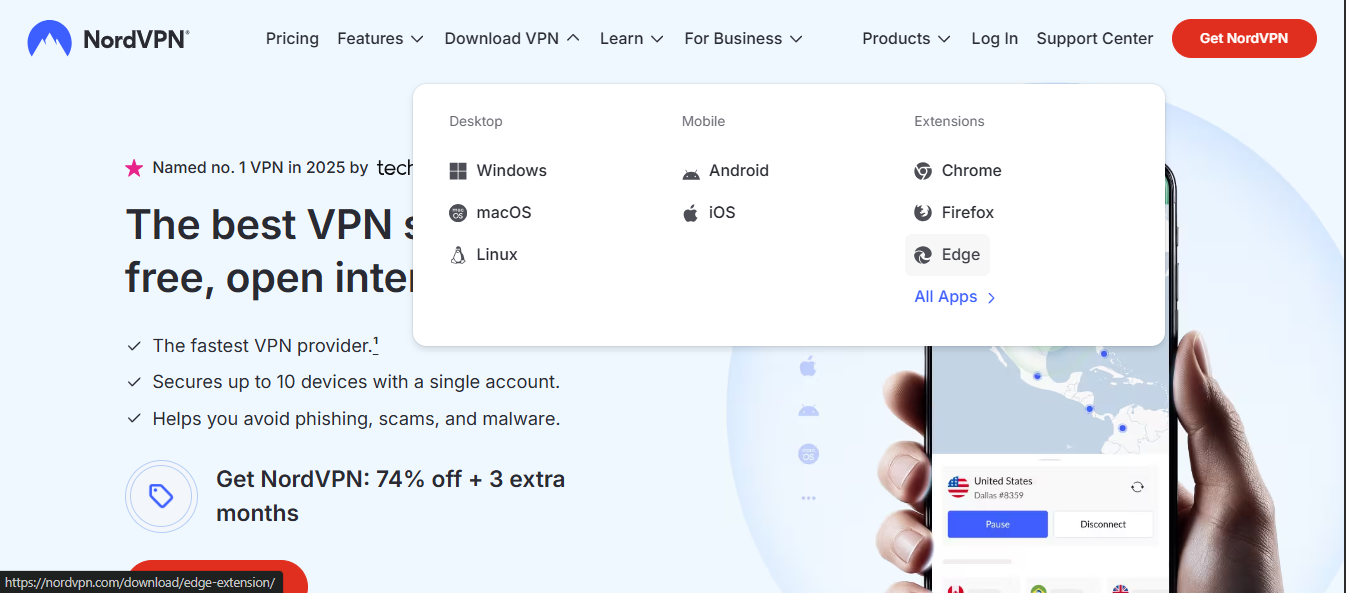
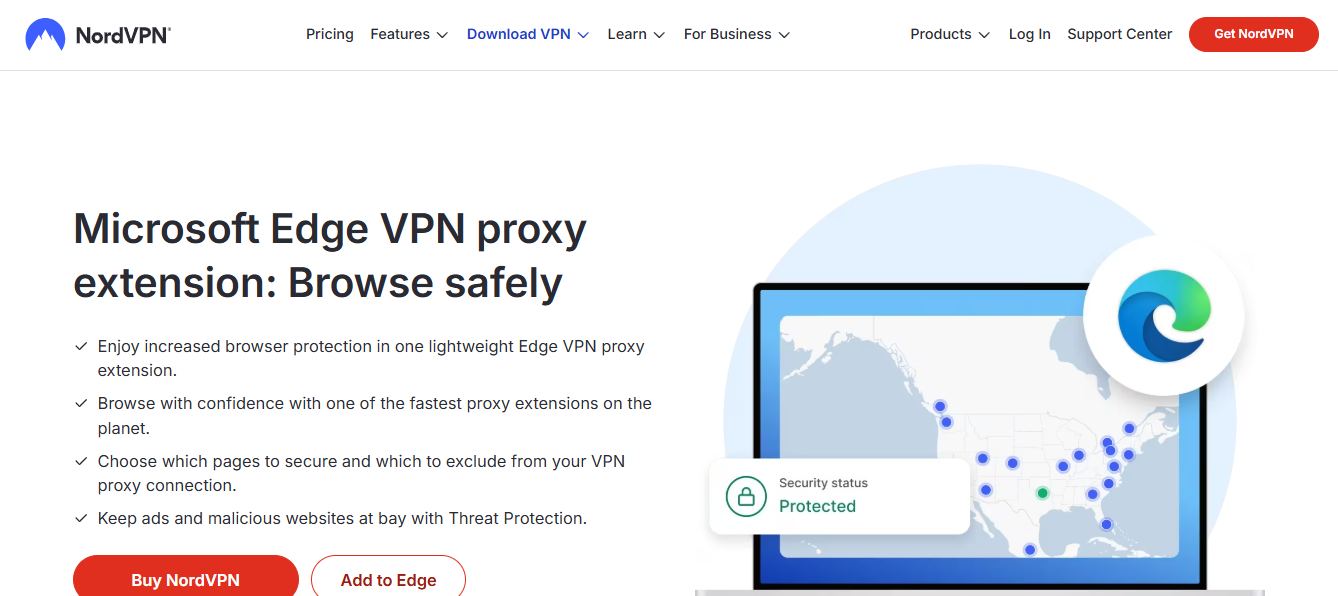
If you’re searching for urban vpn edge, Urban VPN Proxy is a browser extension listed in Microsoft Edge Add-ons. You can install it from Edge’s add-on store, choose an available server, and connect through the extension. The listing advertises a network of 632 VPN servers, while Urban VPN promotes features such as access to websites and added protection during browsing. Before using it, understand what an extension does, and what it may not cover.
Editor's pick: NordVPN — fast, secure VPN — Strong encryption, a no-logs policy and apps for every device. 30-day money-back guarantee. Get NordVPN →
Comparing VPN options for Edge
| Option | Available in Edge | Setup effort | Browser traffic protection | Cost model |
|---|---|---|---|---|
| Urban VPN Edge | Yes | Install extension | Browser traffic | Free |
| Another Edge VPN extension | Check listing | Install extension | Check provider details | Free or paid |
| Desktop VPN app | Depends on provider | Install app | Device traffic | Free or paid |
| Built-in browser privacy tools | Yes | Change settings | Limited privacy features | Usually free |
| Proxy service | Depends on provider | Configure service | Routed traffic | Free or paid |
| No VPN or proxy | Yes | None | No VPN protection | Free |
Compiled November 2026; check the provider's site for current details.
| VPN | Obfuscation | From / month | Plan | Free plan | Refund | Alipay | UnionPay | Crypto | Website opens in China | Trustpilot | |
|---|---|---|---|---|---|---|---|---|---|---|---|
 ZoogVPN | Turn on manually Shadow | $2.49/mo | 27 months: $59.99 | Yes | 7 days | ✓ | ✓ | ✓ | ✓ | Official site blocked; our special link opens (4.4 s) | 4.2/5 (195 reviews) |
 NordVPN | Turn on manually Obfuscated Servers / NordWhisper | $3.49/mo | 27 months: $94.23 | No | 30 days | ? | ✗ | ✓ | ✓ | ✗ Blocked | 4.2/5 (51,628 reviews) |
 ExpressVPN | ✓ On by default all servers | $3.00/mo | 28 months: $84 | No | 30 days | ✗ | ✗ | ✓ | ✗ | ✗ Blocked | 4.4/5 (29,706 reviews) |
 Surfshark | ✓ On by default Camouflage, with OpenVPN | See site | See site | No | 30 days | ✗ | ✗ | ✗ | ✓ | ✗ Blocked | 4.3/5 (31,823 reviews) |
 Proton VPN | Turn on manually Stealth, free plan too | $2.99/mo | 12 months: $35.88 | Yes | 30 days | ✗ | ✗ | ✗ | ✓ | ✗ Blocked | 2.1/5 (1,040 reviews) |
 Astrill VPN | Turn on manually StealthVPN / OpenWeb | $12.50/mo | 24 months: $300 | No | See site | ✗ | ✗ | ✗ | ✓ | ✗ Blocked | 1.3/5 (110 reviews) |
 Private Internet Access | Turn on manually Shadowsocks, OpenVPN only | $2.03/mo | 40 months: $81.2 | No | 30 days | ✗ | ✗ | ✗ | ✗ | ✗ Blocked | 4.2/5 (11,033 reviews) |
 CyberGhost | Turn on manually selected servers | $2.19/mo | 28 months: $61.32 | No | 45 days | ✗ | ✗ | ✗ | ✓ | ✗ Blocked | 4.0/5 (24,178 reviews) |
 PureVPN | Turn on manually switch to OpenVPN | $1.69/mo | 60 months: $101.55 | No | 31 days | ? | ? | ✗ | ✓ | ✗ Blocked | 4.4/5 (17,994 reviews) |
 AdGuard VPN | ✓ On by default TrustTunnel | $2.99/mo | 24 months: $71.76 | Yes | 30 days | ✓ | ✗ | ✓ | ✓ | Official site blocked; our special link opens (3.7 s) | 4.3/5 (290 reviews) |
 Mullvad | Turn on manually QUIC / Shadowsocks / LWO | $5.61/mo | €5/mo | No | 14 days | ✗ | ✗ | ✗ | ✓ | ✗ Blocked | 3.2/5 (192 reviews) |
 Windscribe | Turn on manually Stealth / WStunnel | $5.75/mo | 12 months: $69 | Yes | See site | ✗ | ✗ | ✗ | ✓ | ✗ Blocked | 4.7/5 (13,355 reviews) |
 StrongVPN | Turn on manually Scramble, OpenVPN TCP | See site | See site | No | 30 days | ✓ | ✗ | ✗ | ✗ | ✗ Blocked | 4.4/5 (2,695 reviews) |
 LightXtreme 闪连 | Not listed | $7.08/mo | 12 months: $84.99 | Yes | 30 days | ✓ | ✓ | ✓ | ✓ | ✓ Yes (3.5 s) | No page |
Prices checked 2026-11-10 on each vendor's pricing page (cheapest long plan, USD). Check the vendor's checkout for the final price.
Obfuscation checked 2026-11-14 on each vendor's site and help center: "on by default" = nothing to set; "turn on manually" = switch protocol or mode in settings; "not listed" = the vendor describes no obfuscation.
Payment methods checked 2026-11-10 on each vendor's payment pages: all 14 take cards and PayPal; ✗ = not listed, ? = the vendor's own pages disagree.
China access: whether the official website opens from mainland China networks (tests the website only, not the VPN connection). Last checked 2026-11-18 01:02 Beijing time.
Trustpilot score and review count checked 2026-11-10.
What is Urban VPN for Edge?
Urban VPN Proxy is an extension designed to work within the Microsoft Edge browser. Urban VPN describes its browser extension as a way to connect through a VPN proxy, change the apparent location of your browser connection, and access content that may not be available in your region.
The Microsoft Edge Add-ons listing describes instant VPN protection and access to 632 servers. Features and availability can change, so check the current listing and the extension’s permissions before installing.
A browser extension is not automatically the same as a full-device VPN. It may route or protect traffic from the browser where it is active, while other apps on your computer may continue using your regular connection. If you need protection across all applications, look for a desktop VPN that explicitly covers device-wide traffic.
How to install Urban VPN Edge
Use Microsoft’s official Edge Add-ons store rather than an unfamiliar download site. Installing from the store makes it easier to confirm that you are selecting the listed extension and review its publisher information, permissions, and recent updates.
Installation steps
- Open Microsoft Edge and go to the Microsoft Edge Add-ons store.
- Search for Urban VPN Proxy.
- Open the extension’s listing and review its details and permissions.
- Select Get and confirm the installation when Edge prompts you.
- Find the Urban VPN icon in the browser toolbar. If it is hidden, use Edge’s extensions menu to locate or pin it.
After installation, open the extension and follow its on-screen instructions. You may need to select a location or server and then activate the connection. The exact interface may change as the extension is updated. FortiClient VPN Download: Official Sources and Installation Guide
How to connect and check that it is working
Once the extension is installed, open it from Edge’s toolbar and connect using the available controls. If it offers a choice of locations, select one that suits your intended use. A nearby location may be a sensible starting point for general browsing, while a different location may be relevant if you are trying to access region-specific content.
After connecting, check that the extension indicates an active connection. You can also visit a reputable IP-checking website to see whether your browser appears to be using a different network location. This is a basic check, not a complete privacy or security audit.
If the connection does not work as expected, try these steps:
- Confirm that the extension is enabled in Edge.
- Disconnect and reconnect, or try another available server.
- Reload the page you are trying to visit.
- Check whether another VPN, proxy, or security extension is interfering.
- Review the extension’s current help information and permissions.
Streaming services and other websites may block VPN connections or restrict content according to their own rules. A VPN extension cannot guarantee access to a particular site or service.
Urban VPN Edge installation and connection checks VPN PES: What It Does and Whether You Need One for eFootball
| Step | What to do | What to look for | If it does not work |
|---|---|---|---|
| Find the extension | Open Edge Add-ons | Urban VPN listing | Check the name and publisher |
| Install | Select Get or Install | Extension appears in Edge | Review permissions and retry |
| Open it | Select its toolbar icon | VPN controls appear | Check the Extensions menu |
| Choose a location | Select an available location | Location is selected | Try another listed location |
| Connect | Select Connect | Connected status appears | Reconnect or check the network |
| Check the connection | Visit a trusted IP-check site | IP or location may change | Confirm connection status |
| Test browsing | Load a website | Page loads through the connection | Try another site or location |
Compiled November 2026; check the provider's site for current details.
What does the extension protect?
Urban VPN promotes its browser extension as a way to help shield browsing from threats such as phishing attempts, malware, and intrusive ads. Its Edge listing also advertises VPN protection. These claims should be considered alongside the extension’s published privacy information, permission requests, and the limits of browser-based tools.
| Option | Main scope | Useful consideration |
|---|---|---|
| Urban VPN Edge extension | Browsing through Microsoft Edge | Other apps may not use the extension’s connection |
| Desktop VPN application | Potentially the whole device, depending on its settings | Check which traffic and apps are covered |
| No VPN or proxy | Your ordinary internet connection | Your connection uses the network’s usual routing |
A VPN or proxy can change how traffic is routed, but it does not make you anonymous or guarantee that every online risk is blocked. It also does not replace safe browsing habits, updated software, or careful handling of passwords and personal information.
Before installing, review the extension’s privacy policy and permissions. Pay attention to what data it may collect, how that data is used, and whether its access is limited to what you expect. If you handle sensitive work or personal information, assess whether a browser extension meets your organization’s requirements.
Is Urban VPN Edge free?
Urban VPN’s website promotes a free browser extension and describes it as offering unlimited bandwidth. The Edge listing should be checked for its current terms, features, and any limitations. Do not assume that every feature, location, or level of service is identical across the browser extension, desktop software, and other Urban VPN products. OpenVPN Connect: How to Download, Set Up, and Use the Official VPN Client
“Free” also does not answer every question about privacy or suitability. Compare the product’s current terms and privacy disclosures with your needs, especially if you plan to use it regularly or for sensitive browsing.
Browser extension or desktop app?
Choose based on what you want to protect:
- For Edge browsing: The extension may be convenient if you only want a browser-based connection.
- For other apps: Investigate a desktop VPN and confirm that it covers the traffic you want.
- For sensitive use: Review the provider’s privacy and security information before connecting.
- For basic access: Test the extension with non-sensitive browsing first and check how it behaves.
What to consider before choosing Urban VPN Edge
| Decision factor | Urban VPN Edge | What to verify | Why it matters |
|---|---|---|---|
| Edge compatibility | Browser extension | Confirm current Edge support | Ensures it can be installed |
| Price | Free | Check current terms | Availability and limits may change |
| Protection scope | Browser traffic | Check whether other apps are covered | An extension may not protect the whole device |
| Connection status | Shown in the extension | Confirm it says connected | Prevents assuming protection is active |
| Location choice | Locations may be offered | Review available locations | Choice affects the apparent location |
| Privacy terms | Provider policy applies | Read logging and data-use details | Clarifies how data is handled |
| Recommendation | Evaluate before relying on it | Test connection and review policy | Match the service to your needs |
Compiled November 2026; check the provider's site for current details.
Recommendation
Urban VPN Edge is worth considering if you want a browser extension that is easy to find in Microsoft Edge Add-ons and are comfortable reviewing its permissions and privacy terms. Install it from the official store, confirm what traffic it covers, and test the connection before relying on it. If you need device-wide protection or stronger assurances for sensitive activity, compare it with a full desktop VPN and choose the option whose coverage and privacy practices you can verify. Free VPN With Country Selection: What to Know Before You Choose

Ezekiel Saavedra has been writing about consumer technology since 2018, with bylines covering streaming geo-unblocking, P2P networking, and router firmware. Approaches each review by setting up the product the same way a typical reader would and recording every snag along the way.