VPN Free Extension Edge: How to Choose and Use One
Find out how free VPN extensions for Microsoft Edge work, what to check before installing one, and how to choose safely.
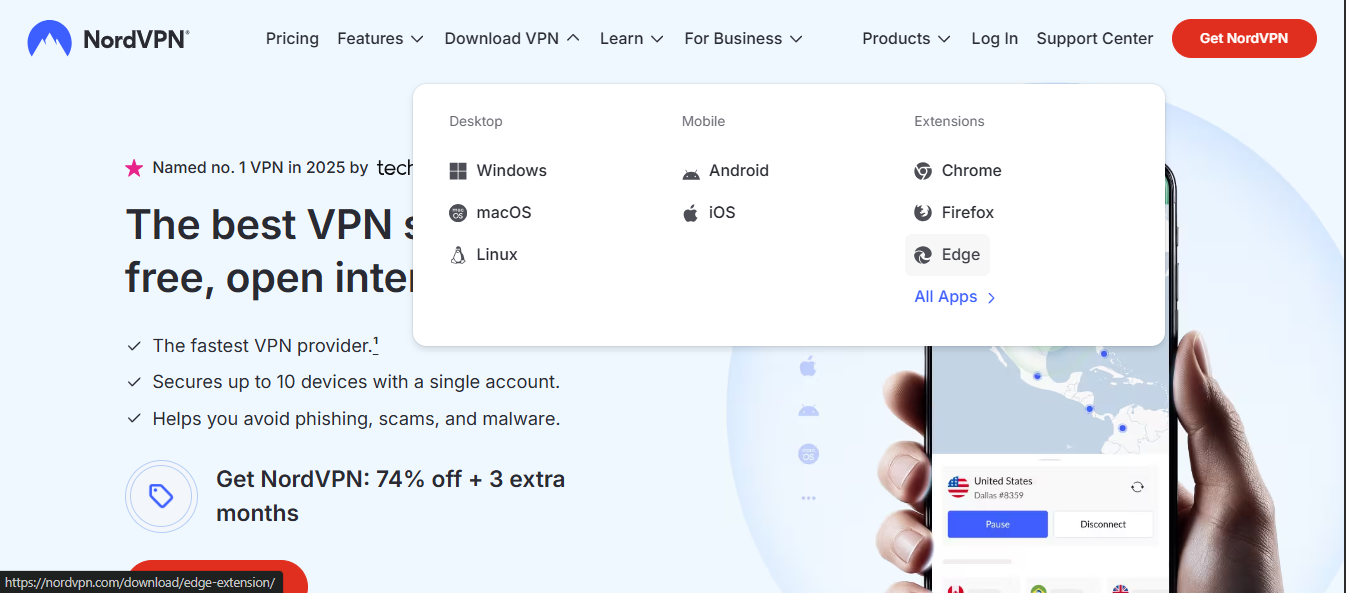
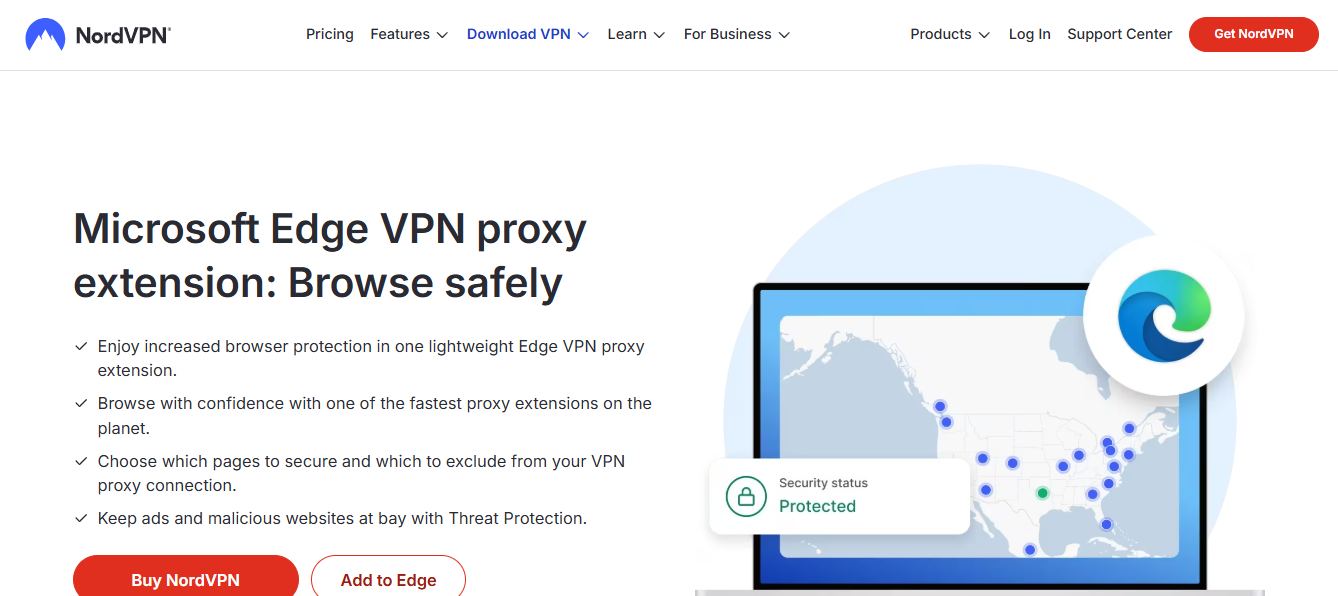
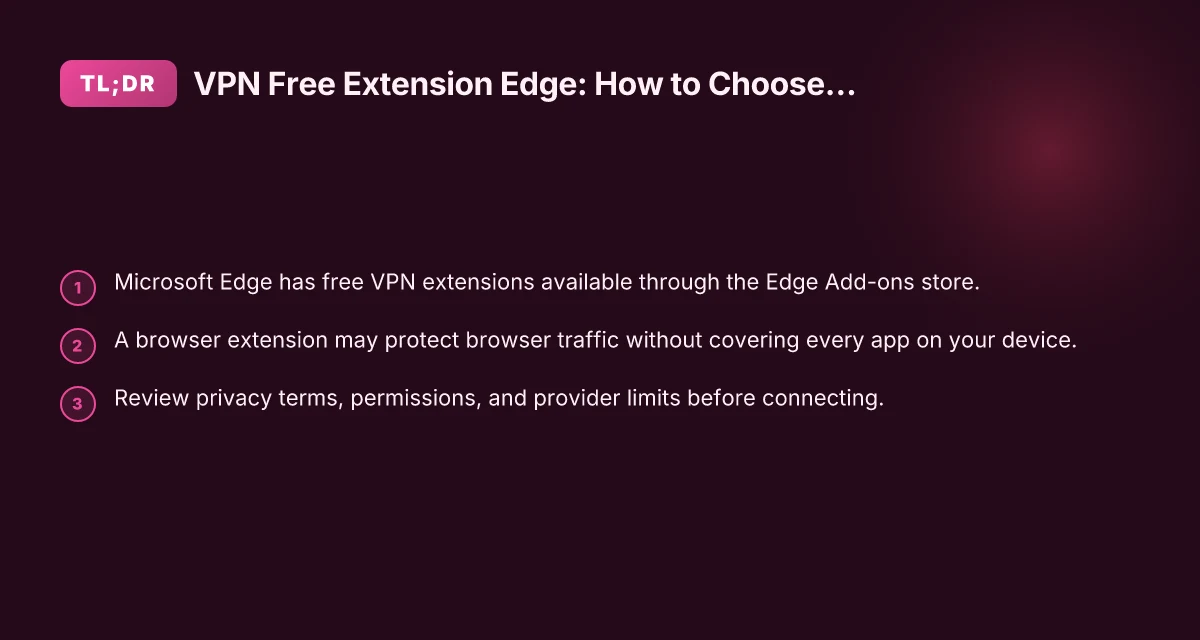
A VPN free extension for Edge can help you browse through a VPN connection without installing a full desktop app. Options in Microsoft’s Edge Add-ons store include VeePN and Browsec VPN, while providers such as VuzeVPN and FreeVPNPlanet also offer Edge extensions. These services make different claims and may have different limitations, so check each provider’s current terms before choosing one.
Editor's pick: NordVPN — fast, secure VPN — Strong encryption, a no-logs policy and apps for every device. 30-day money-back guarantee. Get NordVPN →
Compare free Edge VPN extensions by practical use
| Option | Best for | Free-plan limits | Server choice | Typical trade-off |
|---|---|---|---|---|
| Browser VPN extension | Protecting Edge traffic | Depends on provider | Often limited | Other apps may be uncovered |
| Full VPN app | Protecting device traffic | Depends on provider | Often broader | Requires installing an app |
| Extension with a data cap | Occasional browsing | Limited data | May be limited | Can run out during streaming |
| Extension with speed limits | Light browsing | May be throttled | May be limited | Slower downloads and video |
| Extension with account sign-in | Provider-managed access | Depends on provider | Varies | Requires an account |
| Extension without sign-in | Quick setup | Depends on provider | Varies | Fewer account controls |
| Paid VPN extension | Frequent use | No free-tier cap | Often broader | Requires a subscription |
Compiled November 2026; check the provider's site for current details.
| VPN | Obfuscation | From / month | Plan | Free plan | Refund | Alipay | UnionPay | Crypto | Website opens in China | Trustpilot | |
|---|---|---|---|---|---|---|---|---|---|---|---|
 Surfshark | ✓ On by default Camouflage, with OpenVPN | See site | See site | No | 30 days | ✗ | ✗ | ✗ | ✓ | ✗ Blocked | 4.3/5 (31,823 reviews) |
 ZoogVPN | Turn on manually Shadow | $2.49/mo | 27 months: $59.99 | Yes | 7 days | ✓ | ✓ | ✓ | ✓ | Official site blocked; our special link opens (4.4 s) | 4.2/5 (195 reviews) |
 NordVPN | Turn on manually Obfuscated Servers / NordWhisper | $3.49/mo | 27 months: $94.23 | No | 30 days | ? | ✗ | ✓ | ✓ | ✗ Blocked | 4.2/5 (51,628 reviews) |
 ExpressVPN | ✓ On by default all servers | $3.00/mo | 28 months: $84 | No | 30 days | ✗ | ✗ | ✓ | ✗ | ✗ Blocked | 4.4/5 (29,706 reviews) |
 Proton VPN | Turn on manually Stealth, free plan too | $2.99/mo | 12 months: $35.88 | Yes | 30 days | ✗ | ✗ | ✗ | ✓ | ✗ Blocked | 2.1/5 (1,040 reviews) |
 Astrill VPN | Turn on manually StealthVPN / OpenWeb | $12.50/mo | 24 months: $300 | No | See site | ✗ | ✗ | ✗ | ✓ | ✗ Blocked | 1.3/5 (110 reviews) |
 Private Internet Access | Turn on manually Shadowsocks, OpenVPN only | $2.03/mo | 40 months: $81.2 | No | 30 days | ✗ | ✗ | ✗ | ✗ | ✗ Blocked | 4.2/5 (11,033 reviews) |
 CyberGhost | Turn on manually selected servers | $2.19/mo | 28 months: $61.32 | No | 45 days | ✗ | ✗ | ✗ | ✓ | ✗ Blocked | 4.0/5 (24,178 reviews) |
 PureVPN | Turn on manually switch to OpenVPN | $1.69/mo | 60 months: $101.55 | No | 31 days | ? | ? | ✗ | ✓ | ✗ Blocked | 4.4/5 (17,994 reviews) |
 AdGuard VPN | ✓ On by default TrustTunnel | $2.99/mo | 24 months: $71.76 | Yes | 30 days | ✓ | ✗ | ✓ | ✓ | Official site blocked; our special link opens (3.7 s) | 4.3/5 (290 reviews) |
 Mullvad | Turn on manually QUIC / Shadowsocks / LWO | $5.61/mo | €5/mo | No | 14 days | ✗ | ✗ | ✗ | ✓ | ✗ Blocked | 3.2/5 (192 reviews) |
 Windscribe | Turn on manually Stealth / WStunnel | $5.75/mo | 12 months: $69 | Yes | See site | ✗ | ✗ | ✗ | ✓ | ✗ Blocked | 4.7/5 (13,355 reviews) |
 StrongVPN | Turn on manually Scramble, OpenVPN TCP | See site | See site | No | 30 days | ✓ | ✗ | ✗ | ✗ | ✗ Blocked | 4.4/5 (2,695 reviews) |
 LightXtreme 闪连 | Not listed | $7.08/mo | 12 months: $84.99 | Yes | 30 days | ✓ | ✓ | ✓ | ✓ | ✓ Yes (3.5 s) | No page |
Prices checked 2026-11-10 on each vendor's pricing page (cheapest long plan, USD). Check the vendor's checkout for the final price.
Obfuscation checked 2026-11-14 on each vendor's site and help center: "on by default" = nothing to set; "turn on manually" = switch protocol or mode in settings; "not listed" = the vendor describes no obfuscation.
Payment methods checked 2026-11-10 on each vendor's payment pages: all 14 take cards and PayPal; ✗ = not listed, ? = the vendor's own pages disagree.
China access: whether the official website opens from mainland China networks (tests the website only, not the VPN connection). Last checked 2026-11-18 01:02 Beijing time.
Trustpilot score and review count checked 2026-11-10.
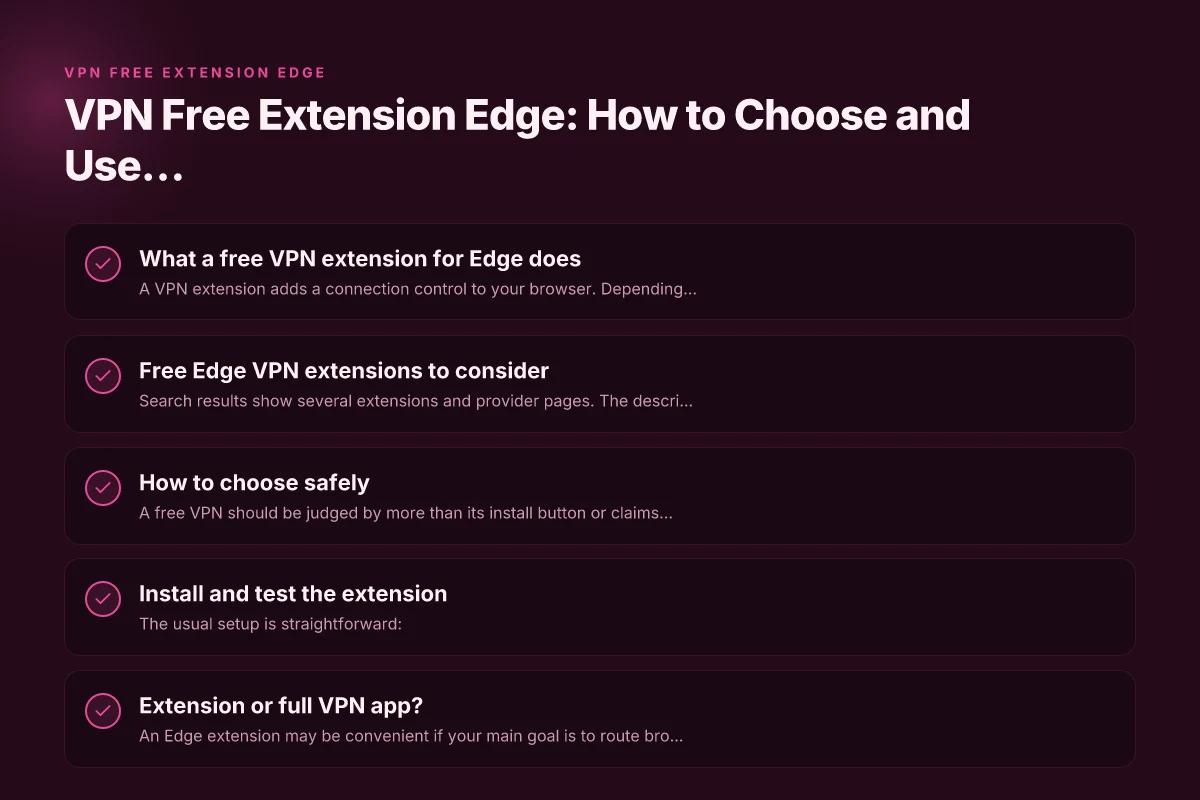
What a free VPN extension for Edge does
A VPN extension adds a connection control to your browser. Depending on the service, it may route browser traffic through a VPN server, mask your apparent IP address, and offer a choice of virtual locations. This can be useful when you want to change how websites see your connection or add privacy while browsing on a network you do not fully trust.
An extension is not necessarily the same as a full VPN application. It may protect only traffic handled by Edge, rather than traffic from every application on your computer. Check the provider’s explanation of what the extension covers.
A VPN can improve privacy in some situations, but it does not make you anonymous. Websites can still identify you through account logins, cookies, browser settings, or other tracking methods.
Free Edge VPN extensions to consider
Search results show several extensions and provider pages. The descriptions below summarize how they are presented. They are not independent assessments of privacy, speed, or security.
| Option | Where it is listed | What the provider says |
|---|---|---|
| VeePN | Microsoft Edge Add-ons and VeePN’s website | Offers a free Edge VPN extension; its page describes private browsing and says the service has no ads, no logs, and unlimited data. |
| Browsec VPN | Microsoft Edge Add-ons | Describes itself as a free Edge extension for protecting your IP and browsing privately. |
| VuzeVPN | Provider website | Promotes unlimited VPN access, website unblocking, and protection on Wi-Fi hotspots. |
| FreeVPNPlanet | Provider website | Promotes IP hiding, data protection, and access to websites through its Edge extension. |
| Surfshark | Provider website | Offers an Edge extension described as providing encrypted browsing, ad blocking, and location changes. |
Provider statements are not a substitute for checking current terms, technical details, and the extension’s permissions. In particular, confirm whether a plan is genuinely free, whether it has usage or location limits, and whether the extension requires a separate account. NordVPN Extension for Edge: How to Install and Use It
Check an Edge VPN extension before installing
| Check | Safer sign | Warning sign | What to verify |
|---|---|---|---|
| Publisher | Recognizable provider | Unclear publisher | Match the provider’s official site |
| Permissions | Relevant and limited | Broad access without explanation | Review Edge’s permission prompt |
| Privacy policy | Explains data handling | Missing or vague policy | Check logging and sharing terms |
| Free-plan terms | Limits stated clearly | Unclear costs or restrictions | Look for data and speed limits |
| Reviews | Consistent, credible feedback | Repeated reports of problems | Check recent reviews |
| Security claims | Specific and qualified | Unsupported guarantees | Treat bold claims cautiously |
| Updates | Maintained regularly | Long gaps or no history | Check the latest update |
| Exit option | Easy to disconnect or remove | Unclear controls | Test disconnect and uninstall |
Compiled November 2026; check the provider's site for current details.
How to choose safely
A free VPN should be judged by more than its install button or claims of unlimited access. Before adding an extension, look for clear information about how it handles your data.
Check these points:
- Privacy policy: Find out what information is collected, how it is used, and whether it is shared.
- Logging details: Read what the provider means by “no logs.” The phrase can be used differently by different services.
- Permissions: Review the access requested by the extension. Be cautious if the permissions seem unrelated to its VPN function.
- Free-plan limits: Confirm whether there are restrictions on data, speed, server locations, or features.
- Provider identity: Look for a clear company website and support information, and make sure the extension listing matches the provider.
- Updates and reviews: Check that the add-on is maintained and read recent user feedback, while remembering that reviews do not prove a service is secure.
Prefer installing from the official Microsoft Edge Add-ons store or the provider’s verified website. Avoid unfamiliar download pages, and do not install multiple VPN extensions at once unless you understand how they may interact. VPN Extension for Microsoft Edge: How to Choose and Use One
Install and test the extension
The usual setup is straightforward:
- Open the Microsoft Edge Add-ons store or the VPN provider’s official Edge page.
- Check the extension name, publisher, permissions, and privacy information.
- Select the option to add it to Edge and approve the requested access only if you are comfortable with it.
- Open the extension, sign in or create an account if required, and connect to a location.
- Visit a reputable IP-checking service to confirm that your apparent location or IP address has changed.
Disconnect the extension when you no longer need it, especially if you want to return to your regular connection. If a site stops working, try another location or disconnect temporarily. A VPN can also affect website access, streaming availability, and connection performance.
Choose the right setup for your needs
| Need | Edge extension | Full VPN app | Before you decide |
|---|---|---|---|
| Protect Edge browser traffic | Often suitable | Suitable | Check which traffic is covered |
| Protect other apps | Usually not covered | Usually suitable | Confirm app-level coverage |
| Occasional browsing | Convenient | May be more setup | Check free-plan limits |
| Frequent streaming | Limits may get in the way | Often more options | Verify speed and data terms |
| Simple installation | Usually quick | Requires app installation | Use the official source |
| Control server location | May be limited | Often broader choice | Check available locations |
| Avoid data caps | Depends on provider | Depends on plan | Read the plan details |
| Test the connection | Check IP and access | Check IP and device traffic | Disconnect if results look wrong |
Compiled November 2026; check the provider's site for current details.
Extension or full VPN app?
An Edge extension may be convenient if your main goal is to route browser activity through a VPN. A full VPN application may be a better fit when you want protection for other software on your device as well. Coverage varies by provider, so verify exactly what is included rather than relying on the word “VPN” alone. Free VPN for Edge Extension: How to Choose One
Also keep in mind that a VPN does not replace safe browsing habits. It cannot prevent every scam, malware infection, or form of tracking. Use HTTPS where available, keep Edge updated, and be cautious with links, downloads, and account information.
Recommendation
There are free VPN extensions available for Microsoft Edge, including VeePN and Browsec VPN in the Edge Add-ons store, along with options promoted by other providers. Choose one only after reviewing its privacy policy, permissions, and free-plan terms. If you need coverage beyond Edge, compare a full VPN app instead, and treat promises such as “unlimited” or “no logs” as claims to verify, not guarantees.

Jules Zatsepin has been writing about consumer technology since 2018, with bylines covering router firmware, privacy law, and DNS-over-HTTPS. Approaches each review by setting up the product the same way a typical reader would and recording every snag along the way.