How to Enable VPN in Edge: Turn On Microsoft Edge Secure Network
Learn how to enable Edge Secure Network, check whether it is available, and understand when you may need a separate VPN.
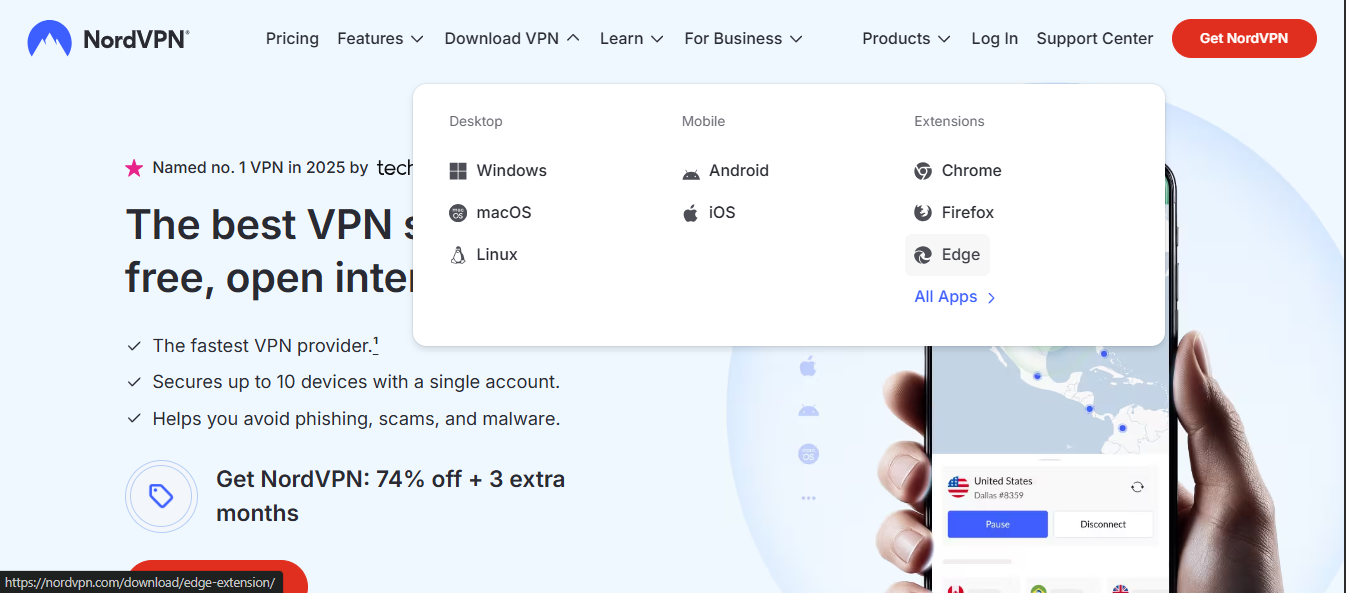
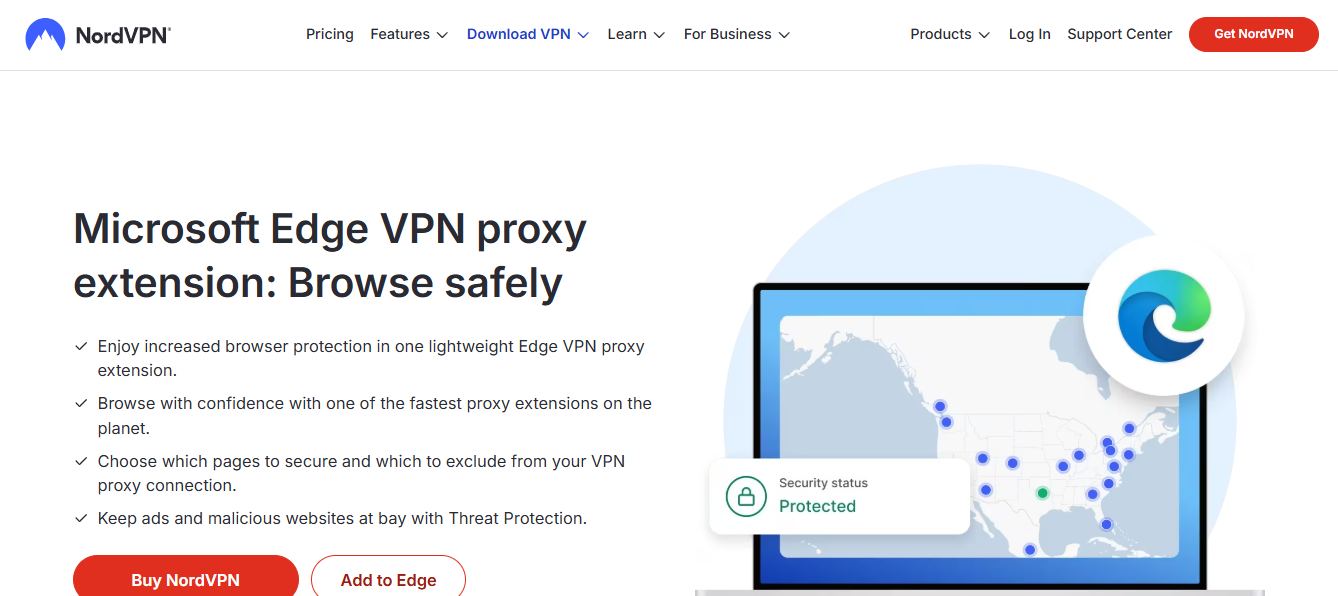
To enable VPN in Edge, open Settings and more (…) > Settings > Privacy, search, and services, then find Microsoft Edge Secure Network and switch it on. If the option is missing, update Edge and check whether the feature is available for your account and location. Secure Network uses VPN technology to help protect browsing traffic, especially on open Wi-Fi, but it does not route all traffic from your device through a VPN.
Editor's pick: NordVPN — fast, secure VPN — Strong encryption, a no-logs policy and apps for every device. 30-day money-back guarantee. Get NordVPN →
Compare the ways to enable Edge Secure Network
| Option | Where to look | What to do | Best for |
|---|---|---|---|
| Edge settings | Settings and more menu | Open Settings and find Privacy, search, and services | Browsing settings directly |
| Secure Network control | Browser toolbar | Select the Secure Network control, if available | Quick access |
| Settings search | Settings search box | Search for “Secure Network” | Finding the setting |
| Microsoft account | Sign-in prompt | Sign in if Edge asks you to | Completing setup |
| Feature availability | Secure Network settings | Check whether the option appears | Confirming access |
| After enabling | Secure Network control | Check that the feature shows as on | Verifying the change |
Compiled November 2026; check the provider's site for current details.
| VPN | Obfuscation | From / month | Plan | Free plan | Refund | Alipay | UnionPay | Crypto | Website opens in China | Trustpilot | |
|---|---|---|---|---|---|---|---|---|---|---|---|
 ZoogVPN | Turn on manually Shadow | $2.49/mo | 27 months: $59.99 | Yes | 7 days | ✓ | ✓ | ✓ | ✓ | Official site blocked; our special link opens (4.4 s) | 4.2/5 (195 reviews) |
 NordVPN | Turn on manually Obfuscated Servers / NordWhisper | $3.49/mo | 27 months: $94.23 | No | 30 days | ? | ✗ | ✓ | ✓ | ✗ Blocked | 4.2/5 (51,628 reviews) |
 ExpressVPN | ✓ On by default all servers | $3.00/mo | 28 months: $84 | No | 30 days | ✗ | ✗ | ✓ | ✗ | ✗ Blocked | 4.4/5 (29,706 reviews) |
 Surfshark | ✓ On by default Camouflage, with OpenVPN | See site | See site | No | 30 days | ✗ | ✗ | ✗ | ✓ | ✗ Blocked | 4.3/5 (31,823 reviews) |
 Proton VPN | Turn on manually Stealth, free plan too | $2.99/mo | 12 months: $35.88 | Yes | 30 days | ✗ | ✗ | ✗ | ✓ | ✗ Blocked | 2.1/5 (1,040 reviews) |
 Astrill VPN | Turn on manually StealthVPN / OpenWeb | $12.50/mo | 24 months: $300 | No | See site | ✗ | ✗ | ✗ | ✓ | ✗ Blocked | 1.3/5 (110 reviews) |
 Private Internet Access | Turn on manually Shadowsocks, OpenVPN only | $2.03/mo | 40 months: $81.2 | No | 30 days | ✗ | ✗ | ✗ | ✗ | ✗ Blocked | 4.2/5 (11,033 reviews) |
 CyberGhost | Turn on manually selected servers | $2.19/mo | 28 months: $61.32 | No | 45 days | ✗ | ✗ | ✗ | ✓ | ✗ Blocked | 4.0/5 (24,178 reviews) |
 PureVPN | Turn on manually switch to OpenVPN | $1.69/mo | 60 months: $101.55 | No | 31 days | ? | ? | ✗ | ✓ | ✗ Blocked | 4.4/5 (17,994 reviews) |
 AdGuard VPN | ✓ On by default TrustTunnel | $2.99/mo | 24 months: $71.76 | Yes | 30 days | ✓ | ✗ | ✓ | ✓ | Official site blocked; our special link opens (3.7 s) | 4.3/5 (290 reviews) |
 Mullvad | Turn on manually QUIC / Shadowsocks / LWO | $5.61/mo | €5/mo | No | 14 days | ✗ | ✗ | ✗ | ✓ | ✗ Blocked | 3.2/5 (192 reviews) |
 Windscribe | Turn on manually Stealth / WStunnel | $5.75/mo | 12 months: $69 | Yes | See site | ✗ | ✗ | ✗ | ✓ | ✗ Blocked | 4.7/5 (13,355 reviews) |
 StrongVPN | Turn on manually Scramble, OpenVPN TCP | See site | See site | No | 30 days | ✓ | ✗ | ✗ | ✗ | ✗ Blocked | 4.4/5 (2,695 reviews) |
 LightXtreme 闪连 | Not listed | $7.08/mo | 12 months: $84.99 | Yes | 30 days | ✓ | ✓ | ✓ | ✓ | ✓ Yes (3.5 s) | No page |
Prices checked 2026-11-10 on each vendor's pricing page (cheapest long plan, USD). Check the vendor's checkout for the final price.
Obfuscation checked 2026-11-14 on each vendor's site and help center: "on by default" = nothing to set; "turn on manually" = switch protocol or mode in settings; "not listed" = the vendor describes no obfuscation.
Payment methods checked 2026-11-10 on each vendor's payment pages: all 14 take cards and PayPal; ✗ = not listed, ? = the vendor's own pages disagree.
China access: whether the official website opens from mainland China networks (tests the website only, not the VPN connection). Last checked 2026-11-18 01:02 Beijing time.
Trustpilot score and review count checked 2026-11-10.
Enable Microsoft Edge Secure Network
Follow these steps in the desktop version of Microsoft Edge:
- Open Microsoft Edge.
- Select Settings and more (…) in the upper-right corner, or press Alt+F.
- Select Settings.
- Open Privacy, search, and services.
- Scroll to the Security section.
- Select Microsoft Edge Secure Network and turn it on.
- If prompted, sign in with a personal Microsoft account and follow the on-screen instructions.
Once enabled, Secure Network helps protect eligible browsing activity in Edge. The exact controls and prompts may differ depending on your Edge version and whether the feature is available to you.
What Edge Secure Network does
Microsoft Edge Secure Network is a browser privacy feature that uses VPN technology to help protect your connection. It can be useful when you browse on an open or public Wi-Fi network, where you may want an added layer of protection for traffic handled by Edge.
It is important to understand the scope: Secure Network is designed for browsing in Edge. It does not necessarily protect other apps on your computer, such as email clients, games, or other browsers. If you need a VPN for all device activity, use a separate VPN service that supports system-wide connections.
| Option | What it generally covers | Best suited for |
|---|---|---|
| Edge Secure Network | Eligible browsing traffic in Microsoft Edge | Extra protection for Edge browsing, including on open Wi-Fi |
| Full-device VPN | Traffic from supported apps and services across the device | Device-wide VPN coverage and broader connection controls |
Secure Network is not a guarantee of complete anonymity. Websites may still identify you through account sign-ins, cookies, or other information you provide. A VPN-style connection also does not replace safe browsing habits or protection against harmful downloads. VPN Extension Edge: How to Choose and Use One Safely
What to consider about Edge Secure Network
| Consideration | Secure Network | What it means |
|---|---|---|
| Browser integration | Built into Microsoft Edge | Manage it in Edge |
| Connection protection | Helps protect network traffic | Useful on public Wi-Fi |
| Scope | Edge browser traffic | Does not protect all device traffic |
| Availability | May depend on access or region | The option may not appear for everyone |
| Account prompt | May require Microsoft account sign-in | Follow the in-browser prompt |
| VPN comparison | Not a full-device VPN replacement | Consider a separate VPN for broader coverage |
Compiled November 2026; check the provider's site for current details.
If you cannot find the Secure Network option
The setting may not appear for every user. Try these checks:
- Update Edge: Open Settings and more (…) > Help and feedback > About Microsoft Edge and let the browser check for updates.
- Check the right settings page: Go to Privacy, search, and services and look under Security.
- Sign in with a personal Microsoft account: Secure Network may ask you to sign in, and a work or school account may not meet the sign-in requirement.
- Check availability: The feature may not be available to every account, region, or Edge installation.
- Restart Edge: After updating or signing in, close and reopen the browser, then check Settings again.
- Check device management: On a work or school device, an administrator may control browser settings or features.
If the option still does not appear, you may not currently have access to Secure Network. Avoid installing an unfamiliar extension that claims to be Microsoft’s built-in VPN. Use Edge’s official settings or choose a reputable VPN provider if you need broader coverage.
Turn Secure Network off
You can disable the feature from the same place: OVPN File: What It Is, How to Open It, and How to Use It Safely
- Open Settings and more (…) > Settings.
- Select Privacy, search, and services.
- Find Microsoft Edge Secure Network under Security.
- Switch it off.
If you no longer want to use the feature, also review any sign-in or account prompts shown in Edge. Turning it off stops Secure Network from protecting eligible browsing traffic, so consider your network and privacy needs before browsing on public Wi-Fi.
Choose what to do with Secure Network
| Situation | Recommended action | Reason |
|---|---|---|
| You want to enable it | Open Edge settings and locate Secure Network | Turn it on in the browser |
| You cannot find the option | Check Edge availability and settings | Access may vary |
| Edge asks you to sign in | Sign in to your Microsoft account | The feature may require it |
| You want to stop using it | Open the Secure Network control or settings | Turn the feature off |
| You need protection beyond Edge | Use a device-wide VPN | Secure Network covers Edge traffic |
| You are unsure whether it is active | Check its status in Edge | Confirm whether it is on or off |
Compiled November 2026; check the provider's site for current details.
Common questions about VPN in Edge
Does Microsoft Edge have a built-in VPN?
Edge offers Microsoft Edge Secure Network, a built-in feature that uses VPN technology for browser privacy. Availability and settings can vary, and it is not the same as a full-device VPN.
Is Edge Secure Network free?
Check the current Secure Network settings and prompts in your version of Edge for the terms that apply to your account. Do not assume that every VPN feature or provider is free based only on the word “Secure Network.” What Is a.ovpn File? How to Open and Use One
How do I activate a VPN in my browser?
For Edge’s built-in option, open Settings > Privacy, search, and services and enable Microsoft Edge Secure Network if it is available. A browser VPN extension is a separate product and may have different permissions, privacy practices, and coverage.
Recommendation
Enable Microsoft Edge Secure Network if it is available and you want added protection for browsing in Edge, particularly on open Wi-Fi. If you need VPN coverage for other apps or the whole device, choose a reputable full-device VPN instead and review its privacy terms before connecting.

Ezekiel Saavedra has been writing about consumer technology since 2018, with bylines covering streaming geo-unblocking, P2P networking, and router firmware. Approaches each review by setting up the product the same way a typical reader would and recording every snag along the way.