VPN Microsoft Edge: How to Turn It On and Choose the Right Option
Learn how Edge’s Secure Network works, how to enable it, and when to choose a separate VPN extension or app.
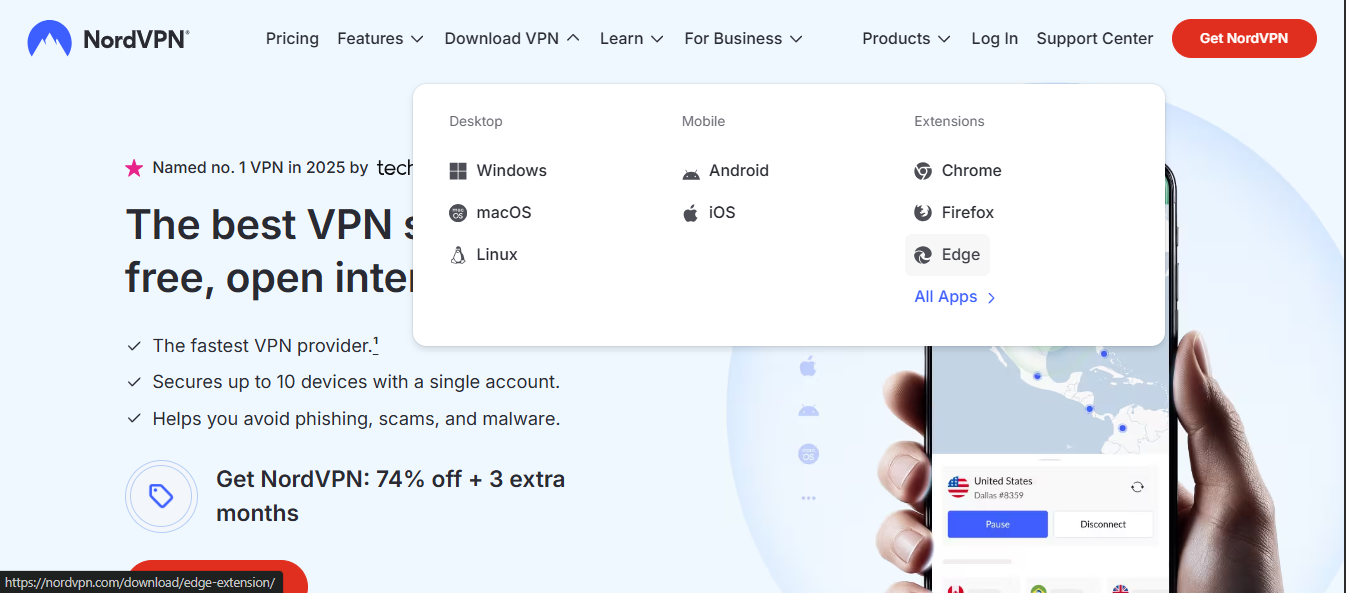
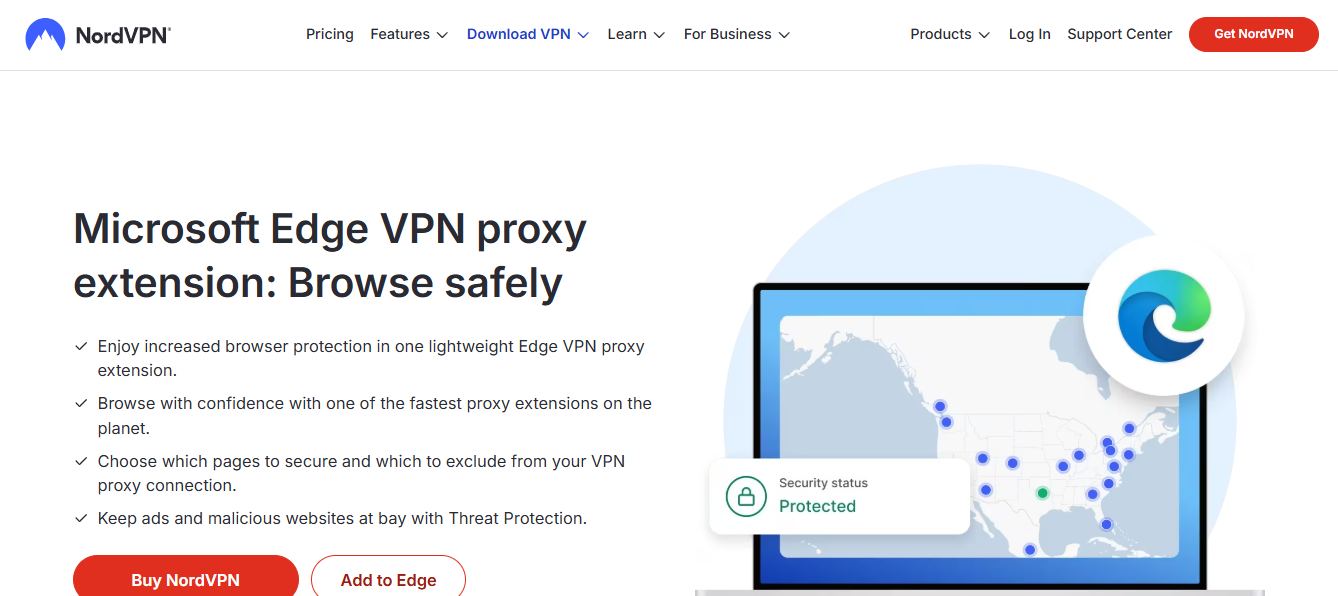
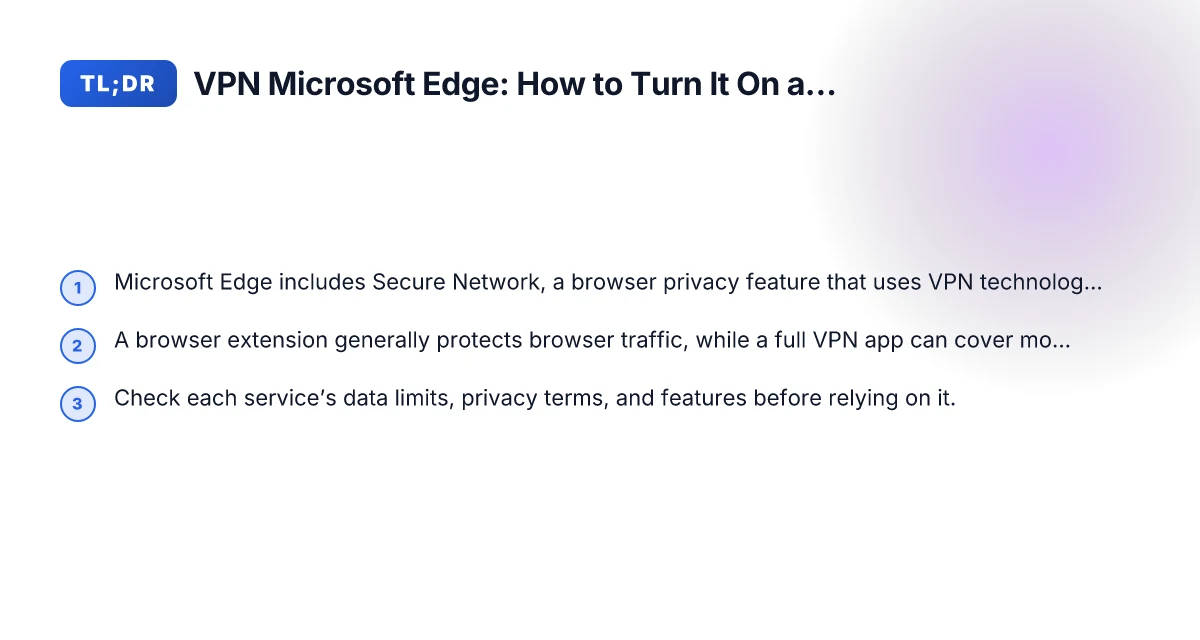
If you’re looking for a VPN for Microsoft Edge, start by checking whether Secure Network is available in your browser. It’s Edge’s built-in privacy feature, which uses VPN technology to help protect your connection while browsing. If you need protection beyond Edge, or want more control over VPN locations and settings, consider a reputable VPN extension or a full VPN app.
Editor's pick: NordVPN — fast, secure VPN — Strong encryption, a no-logs policy and apps for every device. 30-day money-back guarantee. Get NordVPN →
Compare Microsoft Edge Secure Network, VPN extensions, and full VPN apps
| Feature | Edge Secure Network | VPN extension | Full VPN app |
|---|---|---|---|
| Where it runs | Inside Edge | Inside Edge | Across the device |
| Protects browser traffic | Yes | Yes | Yes |
| Protects other apps | No | No | Yes |
| Requires an account | Microsoft account | Depends on provider | Depends on provider |
| Server choice | Limited | Depends on provider | Usually broader |
| Best for | Quick browser protection | Browser-only use | Whole-device protection |
| Works outside Edge | No | No | Yes |
Compiled November 2026; check the provider's site for current details.
| VPN | Obfuscation | From / month | Plan | Free plan | Refund | Alipay | UnionPay | Crypto | Website opens in China | Trustpilot | |
|---|---|---|---|---|---|---|---|---|---|---|---|
 ZoogVPN | Turn on manually Shadow | $2.49/mo | 27 months: $59.99 | Yes | 7 days | ✓ | ✓ | ✓ | ✓ | Official site blocked; our special link opens (4.4 s) | 4.2/5 (195 reviews) |
 NordVPN | Turn on manually Obfuscated Servers / NordWhisper | $3.49/mo | 27 months: $94.23 | No | 30 days | ? | ✗ | ✓ | ✓ | ✗ Blocked | 4.2/5 (51,628 reviews) |
 ExpressVPN | ✓ On by default all servers | $3.00/mo | 28 months: $84 | No | 30 days | ✗ | ✗ | ✓ | ✗ | ✗ Blocked | 4.4/5 (29,706 reviews) |
 Surfshark | ✓ On by default Camouflage, with OpenVPN | See site | See site | No | 30 days | ✗ | ✗ | ✗ | ✓ | ✗ Blocked | 4.3/5 (31,823 reviews) |
 Proton VPN | Turn on manually Stealth, free plan too | $2.99/mo | 12 months: $35.88 | Yes | 30 days | ✗ | ✗ | ✗ | ✓ | ✗ Blocked | 2.1/5 (1,040 reviews) |
 Astrill VPN | Turn on manually StealthVPN / OpenWeb | $12.50/mo | 24 months: $300 | No | See site | ✗ | ✗ | ✗ | ✓ | ✗ Blocked | 1.3/5 (110 reviews) |
 Private Internet Access | Turn on manually Shadowsocks, OpenVPN only | $2.03/mo | 40 months: $81.2 | No | 30 days | ✗ | ✗ | ✗ | ✗ | ✗ Blocked | 4.2/5 (11,033 reviews) |
 CyberGhost | Turn on manually selected servers | $2.19/mo | 28 months: $61.32 | No | 45 days | ✗ | ✗ | ✗ | ✓ | ✗ Blocked | 4.0/5 (24,178 reviews) |
 PureVPN | Turn on manually switch to OpenVPN | $1.69/mo | 60 months: $101.55 | No | 31 days | ? | ? | ✗ | ✓ | ✗ Blocked | 4.4/5 (17,994 reviews) |
 AdGuard VPN | ✓ On by default TrustTunnel | $2.99/mo | 24 months: $71.76 | Yes | 30 days | ✓ | ✗ | ✓ | ✓ | Official site blocked; our special link opens (3.7 s) | 4.3/5 (290 reviews) |
 Mullvad | Turn on manually QUIC / Shadowsocks / LWO | $5.61/mo | €5/mo | No | 14 days | ✗ | ✗ | ✗ | ✓ | ✗ Blocked | 3.2/5 (192 reviews) |
 Windscribe | Turn on manually Stealth / WStunnel | $5.75/mo | 12 months: $69 | Yes | See site | ✗ | ✗ | ✗ | ✓ | ✗ Blocked | 4.7/5 (13,355 reviews) |
 StrongVPN | Turn on manually Scramble, OpenVPN TCP | See site | See site | No | 30 days | ✓ | ✗ | ✗ | ✗ | ✗ Blocked | 4.4/5 (2,695 reviews) |
 LightXtreme 闪连 | Not listed | $7.08/mo | 12 months: $84.99 | Yes | 30 days | ✓ | ✓ | ✓ | ✓ | ✓ Yes (3.5 s) | No page |
Prices checked 2026-11-10 on each vendor's pricing page (cheapest long plan, USD). Check the vendor's checkout for the final price.
Obfuscation checked 2026-11-14 on each vendor's site and help center: "on by default" = nothing to set; "turn on manually" = switch protocol or mode in settings; "not listed" = the vendor describes no obfuscation.
Payment methods checked 2026-11-10 on each vendor's payment pages: all 14 take cards and PayPal; ✗ = not listed, ? = the vendor's own pages disagree.
China access: whether the official website opens from mainland China networks (tests the website only, not the VPN connection). Last checked 2026-11-18 01:02 Beijing time.
Trustpilot score and review count checked 2026-11-10.
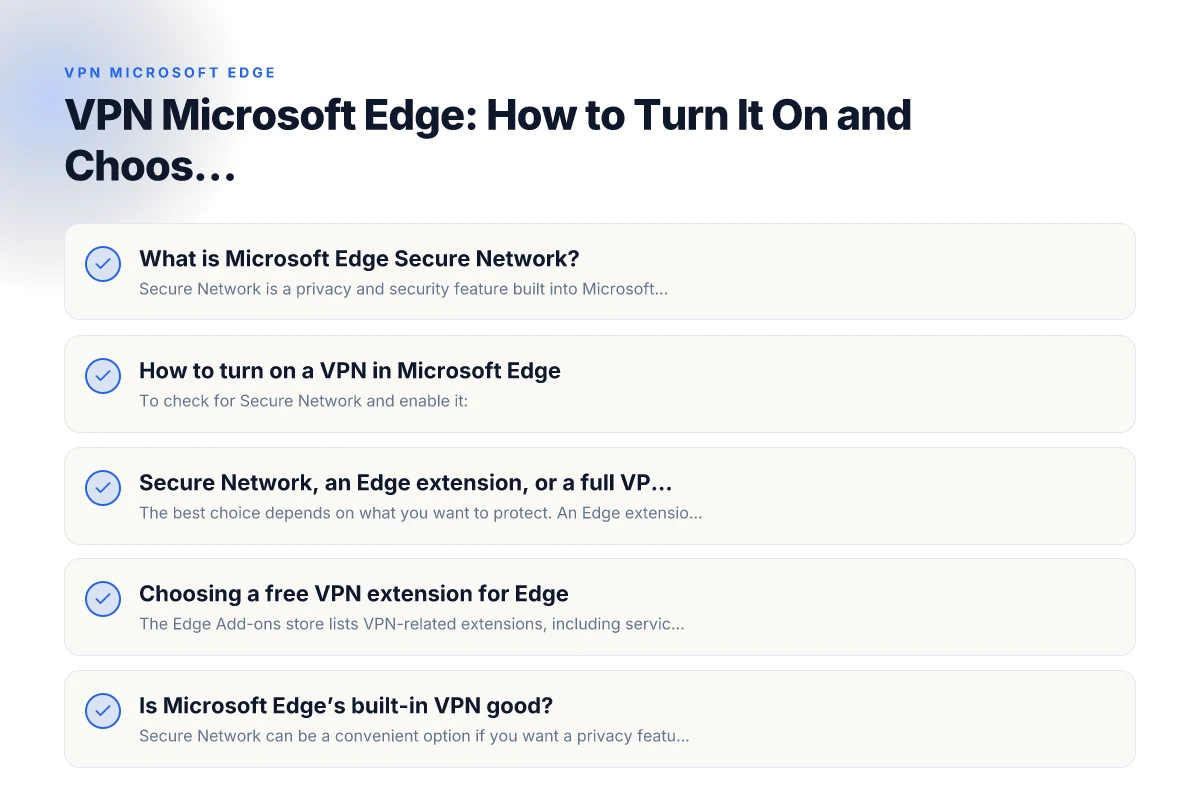
What is Microsoft Edge Secure Network?
Secure Network is a privacy and security feature built into Microsoft Edge. It uses VPN technology to help protect your connection as you browse. That can be useful on an untrusted Wi-Fi network or when you want an added layer of privacy for browser activity.
It is important to understand the scope of the feature. Secure Network is part of Edge, so it is designed for browsing in that browser. It is not automatically the same as installing a system-wide VPN app, which may route traffic from other apps on your device as well.
Availability, settings, and usage limits can depend on the current version of Edge and the service’s terms. Check Edge’s own settings and Microsoft’s current feature information rather than relying on older guides or posts about data allowances.
How to turn on a VPN in Microsoft Edge
To check for Secure Network and enable it:
- Open Microsoft Edge.
- Select the three-dot menu in the upper-right corner.
- Open Settings.
- Look for Privacy, search, and services or a Secure Network setting.
- If Secure Network is available, follow the on-screen instructions to switch it on.
You can also search for “Secure Network” in Edge Settings. If the option does not appear, update Edge and check again. The feature may not be available for every account, region, or browser configuration. IPVanish Login: How to Sign In and Fix Common Problems
When enabled, Secure Network may offer controls for when it activates. Review those options so you know whether it applies on all sites or only in certain situations. A VPN feature does not make every online activity anonymous, and it does not replace careful browsing, strong passwords, or up-to-date security software.
Steps to turn on Microsoft Edge Secure Network
| Step | What to do | What to look for | If you do not see it |
|---|---|---|---|
| 1 | Open Microsoft Edge | Browser window | Update Edge |
| 2 | Open Settings | Settings menu | Use the three-dot menu |
| 3 | Select Privacy, search, and services | Privacy options | Scroll through Settings |
| 4 | Find Microsoft Edge Secure Network | Secure Network section | Availability may vary |
| 5 | Turn on Secure Network | On switch | Sign in if prompted |
| 6 | Choose a protection mode | Mode options, if available | Use the default setting |
| 7 | Browse in Edge | Secure Network status | Check the toolbar or Settings |
Compiled November 2026; check the provider's site for current details.
Secure Network, an Edge extension, or a full VPN?
The best choice depends on what you want to protect. An Edge extension is convenient when you mainly want a VPN-style service in the browser. A full VPN app is a better fit if you want broader device coverage.
| Option | Typical scope | What to check |
|---|---|---|
| Edge Secure Network | Browsing in Microsoft Edge | Availability, activation settings, and current terms |
| VPN extension | Usually browser traffic | Permissions, provider privacy policy, server choices, and data limits |
| Full VPN app | Often traffic across the device | Device support, connection settings, privacy practices, and service limits |
A browser extension may not protect traffic from other browsers or apps. Some extensions also function as proxies rather than full VPNs, so read the provider’s description and privacy policy before installing one. Free VPN: What to Know Before You Choose One
A full VPN app may be more suitable when you need coverage beyond Edge. Its behavior depends on the app and device settings, so confirm which traffic it protects and whether features such as automatic connection or a kill switch are included.
Choosing a free VPN extension for Edge
The Edge Add-ons store lists VPN-related extensions, including services such as VeePN and ZenMate. A listing or a “free” label is not enough to establish that an extension is right for you. Review its current details before adding it.
Pay attention to:
- Privacy policy: Find out what connection or browsing data the provider collects and how it uses it.
- Data limits: Confirm whether usage is unlimited or subject to a cap. Free plans can have restrictions that change over time.
- Permissions: Check what information the extension can access and whether those permissions make sense for its function.
- Server options: Look for the locations and connection choices you actually need.
- Security claims: Treat claims such as “no logs,” “no ads,” or “unlimited data” as provider statements, and verify them in the current listing and policy.
- Reputation and updates: Review the publisher, recent feedback, and whether the extension is maintained.
Install extensions only from a source you trust, and avoid running multiple VPN or proxy extensions at the same time. Conflicting extensions can make it harder to tell how your connection is being handled.
Is Microsoft Edge’s built-in VPN good?
Secure Network can be a convenient option if you want a privacy feature integrated into Edge without searching for a separate extension. Whether it is sufficient depends on your needs, the feature’s availability, and its current terms. Sslvpn poscoenc.com: How to Find and Access POSCO E&C’s VPN
It may be a reasonable starting point for protecting browser connections. However, users who need more control, specific server locations, or protection for apps outside Edge should compare dedicated VPN services. Do not assume that a built-in browser feature provides every function found in a full VPN app.
A VPN also does not prevent all tracking. Websites may still identify you through sign-ins, cookies, or other browser data, and a VPN provider may process connection information according to its policy. Use a VPN as one part of a broader privacy approach, not as a guarantee of anonymity.
Choose the right VPN option for your needs
| Your priority | Edge Secure Network | VPN extension | Full VPN app |
|---|---|---|---|
| Protect only Edge browsing | Suitable | Suitable | Suitable |
| Protect other apps | Not suitable | Not suitable | Suitable |
| Simple setup | Suitable | Suitable | Varies |
| Choose specific servers | Limited | Provider-dependent | Often supported |
| Use VPN outside the browser | No | No | Yes |
| Avoid unknown providers | Microsoft service | Check provider carefully | Check provider carefully |
| Best overall coverage | Limited | Browser only | Strongest fit |
Compiled November 2026; check the provider's site for current details.
Recommendation
Check Microsoft Edge Settings for Secure Network first. If it meets your needs, review its current controls and terms before using it. If you need browser-specific choices, compare well-reviewed Edge extensions carefully. If you want protection beyond the browser, look at a full VPN app. In every case, read the privacy policy and confirm the service’s current limits before trusting it with your traffic. Free VPN Extension for Edge: How to Choose One

Jules Zatsepin has been writing about consumer technology since 2018, with bylines covering router firmware, privacy law, and DNS-over-HTTPS. Approaches each review by setting up the product the same way a typical reader would and recording every snag along the way.