Zscaler VPN not connecting fix
Practical steps to diagnose and resolve common Zscaler VPN connection issues.
Zscaler VPN not connecting fix If your Zscaler VPN isn’t connecting, you’re not alone. This guide walks you through a practical, step-by-step approach to identifying whether the problem is on the client, network, or policy side. By following these steps, you can often restore a reliable connection without lengthy downtime.

Quick sanity checks to start with
| Check | What to verify | Typical outcome | Next step |
|---|---|---|---|
| VPN app running | Process is active | Yes/No | Start or restart app |
| Network connectivity | Ping gateway or internet | Up/Down | Troubleshoot network |
| Correct profile | Loaded Zscaler profile | Yes/No | Re-select profile |
| Time sync | System clock accurate | In sync/Out of sync | Correct time settings |
| Credential status | Logged in user | Active/Expired | Re-authenticate |
| Endpoint health | Antivirus/firewall not blocking | Clear/Blocked | Pause security or allowlists |
| License validity | Subscription status | Valid/Expired | Renew if needed |
| Service status | Zscaler services running | Up/Down | Start services or contact admin |
| Local policy | Local device policy not blocking | Allowed/Blocked | Adjust policy |
| DNS resolution | DNS works for VPN domains | Yes/No | Change DNS or hosts as needed |
Compiled November 2026; check the provider's site for current details.
Quick sanity checks to start with
Before diving into deeper troubleshooting, confirm a few basics that commonly cause VPN failures:
- Internet access: Can you browse web pages or ping a host from the same device?
- Correct credentials: Are you using the right username and password, and is multi-factor authentication functioning?
- Time and date: Is your device clock synchronized? A skewed clock can break certificate validation.
- Zscaler service status: Check your organization’s status page or Zscaler trust portal for any ongoing outages.
- Endpoint health: Ensure your device isn’t blocked by antivirus, firewall, or endpoint security policies.
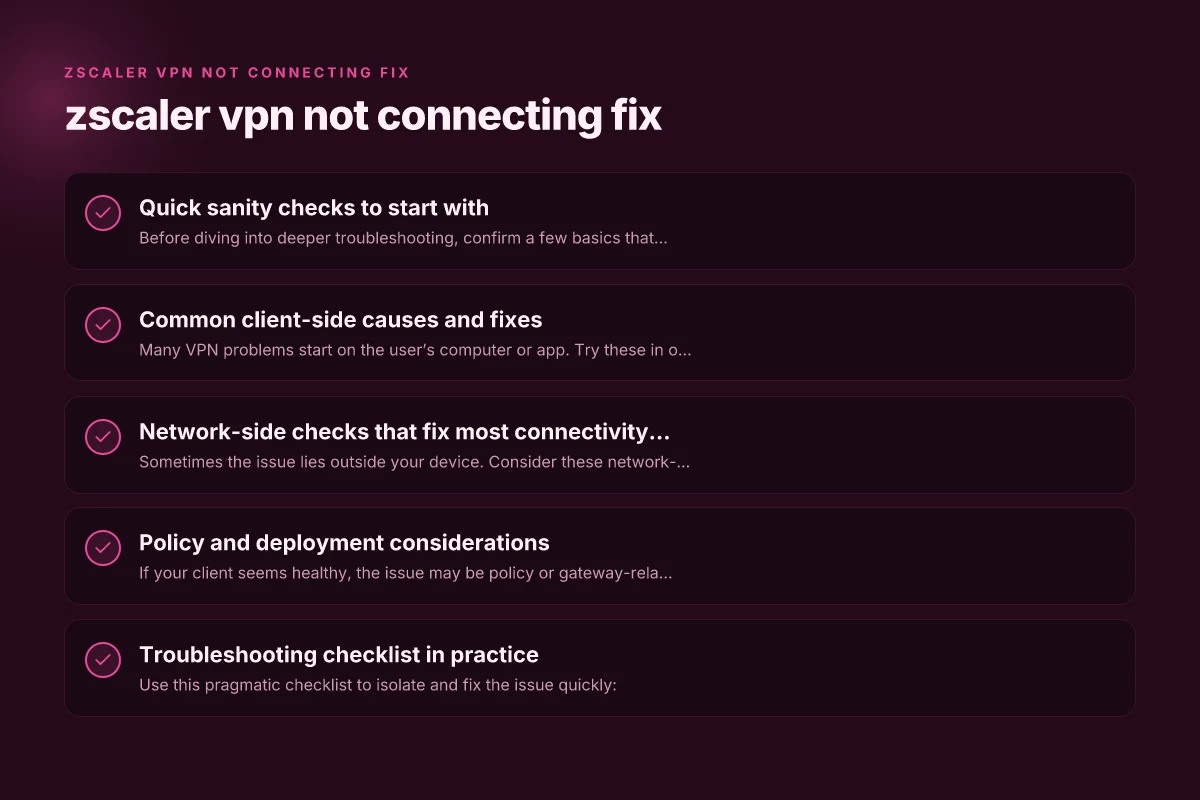
Common client-side causes and fixes
Many VPN problems start on the user’s computer or app. Try these in order:
- Update the Zscaler client: Install the latest Zscaler Client Connector (ZCC) or VPN client version recommended by your IT team.
- Reinstall if needed: Uninstall the VPN client completely, restart the device, then install the latest version.
- Clear cached credentials: In Windows, Credential Manager. On macOS, Keychain Access. Remove old Zscaler entries and re-authenticate.
- Check local firewall rules: Ensure Zscaler processes are allowed outbound and inbound, and that no port restrictions block required traffic.
- Disable conflicting software: Temporarily turn off VPNs, network monitors, or security suites that might intercept VPN traffic.
Network-side checks that fix most connectivity problems
Sometimes the issue lies outside your device. Consider these network-oriented steps:
- DNS resolution: Test with a known IP (e.g., 8.8.8.8) to see if DNS is the bottleneck. Switch to a reliable DNS resolver if needed.
- Proxy or VPN conflicts: If another VPN or proxy is configured, disable it for the Zscaler session.
- Corporate network policy: Some networks require split-tunnel or full-tunnel configurations. Confirm the intended mode with IT.
- Port and protocol requirements: Zscaler typically uses ports like 443 (HTTPS) and may require UDP/TCP for certain services. Ensure these aren’t blocked.
- DNS suffix and hostnames: If Zscaler uses internal hostnames, ensure proper DNS suffixes are present on the machine.
Policy and deployment considerations
If your client seems healthy, the issue may be policy or gateway-related. Key items to review:
- Access policy: Verify that your user group is granted Zscaler VPN access and that there are no recent policy changes blocking your device.
- Authentication method: Some deployments use certificate-based, SAML, or OTP. Confirm the method configured for your account is active.
- Device posture checks: Zscaler can require endpoint posture (OS version, patch level, security status). Ensure your device meets policy requirements.
- Gateway health: Your IT team should check the Zscaler Private Access or Zscaler Internet Access gateway status for the SaaS region you’re trying to reach.
- Time-limited access: Some policies enforce expiry windows or maintenance modes. Confirm you’re attempting access during an allowed window.
Troubleshooting checklist in practice
Use this pragmatic checklist to isolate and fix the issue quickly: VPN protocol comparison
- Can you sign in to the Zscaler portal with your corporate credentials?
- Does the Zscaler client start without errors, and do you see a connected status?
- Are you behind a firewall or proxy that blocks VPN-related traffic?
- Has your device recently updated or changed network settings?
- Do other users in your organization report similar issues, or is it isolated to your account?
Troubleshooting table: client vs. gateway vs. policy
| Area | Typical symptoms | Quick fixes | When to escalate |
|---|---|---|---|
| Client / endpoint | VPN client won’t start, crashes, or shows authentication errors | Update/reinstall client, clear credentials, disable conflicting software | Recurrent client crashes after update, logs show certificate errors |
| Network / DNS | No DNS resolution, timeouts reaching gateway | Check DNS, flush DNS cache, test with public DNS, verify port access | Consistent DNS failures across apps, gateway unreachable from multiple networks |
| Policy / gateway | Sign-in blocked, posture checks fail, access denied | Verify user group and posture requirements, confirm authentication method | Organization-wide policy changes, gateway maintenance, or access revocation |
| General connectivity | Intermittent failures, slow performance | Check network stability, test on another network, review VPN mode (split/full-tunnel) | Persistent instability after several network changes |
How to test the fix end-to-end
- Reproduce the issue: Note the error message, time, and steps leading to failure.
- Apply a specific fix: For example, update the client, then reattempt connection.
- Verify success: The VPN shows connected, traffic routes correctly, and you can access internal apps.
- Monitor: Keep an eye on subsequent login attempts over a short period to ensure stability.
- Document: Record what worked for future issues and share with your IT Helpdesk if needed.
Common client-side causes and fixes
| Cause | Symptom | Fix (action) | Expected result | Notes |
|---|---|---|---|---|
| Outdated client | Connection failures after update | Update to latest version | Connection restored | Check vendor release notes |
| Blocking firewall | VPN handshake fails | Add exception or disable firewall temporarily | Handshake succeeds | Use corporate allowlist |
| Incorrect credentials | Repeated login prompts | Re-enter/Reset password | Auth succeeds | Check SSO status if used |
| Misconfigured proxy | No gateway reachability | Disable proxy or set bypass for VPN | Direct path to gateway | Verify PAC/Proxy settings |
| Bad certificate | TLS errors | Install/renew root or client cert | TLS handshake OK | Check certificate chain |
| Local time drift | Kerberos/SSO failures | Sync time with NTP | Auth succeeds | Ensure accurate time zone |
Compiled November 2026; check the provider's site for current details.
Common error messages and what they usually mean
- “Authentication failed”: Your credentials or method (SAML, certificate, OTP) are not accepted. Check user status and MFA method.
- “Gateway not reachable”: The Zscaler cloud gateway is not reachable from your network. Check network path, firewall, and DNS.
- “Posture check failed”: Your device doesn’t meet policy requirements. Update OS, install missing patches, or enroll compliant software.
- “Certificate error”: Time skew or invalid certificate. Sync time and ensure certificates are trusted.
The role of your IT team and escalation steps
If you’ve tried the above with no luck, involve IT:
- Gather logs: Zscaler client logs, system logs, and the exact error messages with timestamps.
- Share network context: Your current network (home, office, campus), VPN mode, and recent network changes.
- Request gateway health check: IT can verify gateway status and policy enrollment for your account.
- Ask for policy review: Confirm there aren’t new restrictions affecting your device or group.
Network-side checks that fix most connectivity problems
| Check | Tool/metric | Expected result | Action if failing | Impact |
|---|---|---|---|---|
| Gateway reachability | Ping gateway IP | Reply from gateway | If no reply: routing/firewall fix | Essential first step |
| DNS resolution | nslookup to gate fqdn | A/AAAA records returned | Fix DNS or hosts | Critical for domain-based access |
| Split-tunnel policy | Policy status | Allowed traffic for apps | Update policy if blocked | Affects routing |
| Internet path | traceroute to gateway | Path shows hops to gateway | Investigate hop where stuck | Pinpoints network segment |
| MTU size | MTU test | Path MTU matches | Adjust MTU on VPN/client | Prevent fragmentation issues |
| TLS/DTLS ports | Port scan to gateway | Ports 443/Domain proper | Open ports if blocked | Core transport |
Compiled November 2026; check the provider's site for current details. Turn off Surfshark VPN
Best practices to prevent future outages
- Keep the VPN client and OS patched with the latest security updates.
- Maintain updated asset posture by installing required security software and patches.
- Monitor change notices from IT about policy or gateway maintenance.
- Use a known-good network for critical access when troubleshooting in the future.
Short final recommendation
If Zscaler VPN is not connecting, start with client updates and a clean reinstall, then verify network permissions and policy compliance. If the problem persists, coordinate with your IT team to check gateway health and access policies, and review any recent changes that could affect your account or device posture. A systematic approach, not guessing, leads to the quickest resolution.
| VPN | Obfuscation | From / month | Plan | Free plan | Refund | Alipay | UnionPay | Crypto | Website opens in China | Trustpilot | |
|---|---|---|---|---|---|---|---|---|---|---|---|
 ZoogVPN | Turn on manually Shadow | $2.49/mo | 27 months: $59.99 | Yes | 7 days | ✓ | ✓ | ✓ | ✓ | ✓ Yes (2.5 s) | 4.2/5 (195 reviews) |
 NordVPN | Turn on manually Obfuscated Servers / NordWhisper | $3.49/mo | 27 months: $94.23 | No | 30 days | ? | ✗ | ✓ | ✓ | ✗ Blocked | 4.2/5 (51,628 reviews) |
 ExpressVPN | ✓ On by default all servers | $3.00/mo | 28 months: $84 | No | 30 days | ✗ | ✗ | ✓ | ✗ | ✗ Blocked | 4.4/5 (29,706 reviews) |
 Surfshark | ✓ On by default Camouflage, with OpenVPN | See site | See site | No | 30 days | ✗ | ✗ | ✗ | ✓ | ✗ Blocked | 4.3/5 (31,823 reviews) |
 Proton VPN | Turn on manually Stealth, free plan too | $2.99/mo | 12 months: $35.88 | Yes | 30 days | ✗ | ✗ | ✗ | ✓ | ✓ Yes (2.5 s) | 2.1/5 (1,040 reviews) |
 Astrill VPN | Turn on manually StealthVPN / OpenWeb | $12.50/mo | 24 months: $300 | No | See site | ✗ | ✗ | ✗ | ✓ | ✗ Blocked | 1.3/5 (110 reviews) |
 Private Internet Access | Turn on manually Shadowsocks, OpenVPN only | $2.03/mo | 40 months: $81.2 | No | 30 days | ✗ | ✗ | ✗ | ✗ | ✗ Blocked | 4.2/5 (11,033 reviews) |
 CyberGhost | Turn on manually selected servers | $2.19/mo | 28 months: $61.32 | No | 45 days | ✗ | ✗ | ✗ | ✓ | ✗ Blocked | 4.0/5 (24,178 reviews) |
 PureVPN | Turn on manually switch to OpenVPN | $1.69/mo | 60 months: $101.55 | No | 31 days | ? | ✗ | ✗ | ✓ | ✓ Yes (2.6 s) | 4.4/5 (17,994 reviews) |
 AdGuard VPN | ✓ On by default TrustTunnel | $2.99/mo | 24 months: $71.76 | Yes | 30 days | ✓ | ✗ | ✓ | ✓ | Official site blocked; our special link opens (2.3 s) | 4.3/5 (290 reviews) |
 Mullvad | Turn on manually QUIC / Shadowsocks / LWO | $5.61/mo | €5/mo | No | 14 days | ✗ | ✗ | ✗ | ✓ | ✗ Blocked | 3.2/5 (192 reviews) |
 Windscribe | Turn on manually Stealth / WStunnel | $5.75/mo | 12 months: $69 | Yes | See site | ✗ | ✗ | ✗ | ✓ | ✗ Blocked | 4.7/5 (13,355 reviews) |
 StrongVPN | Turn on manually Scramble, OpenVPN TCP | See site | See site | No | 30 days | ✓ | ✗ | ✗ | ✗ | ✗ Blocked | 4.4/5 (2,695 reviews) |
 LightXtreme 闪连 | Not listed | $7.08/mo | 12 months: $84.99 | Yes | 30 days | ✓ | ✓ | ✓ | ✓ | ✓ Yes (2.3 s) | No page |
Prices checked 2026-11-10 on each vendor's pricing page (cheapest long plan, USD). Check the vendor's checkout for the final price.
Obfuscation checked 2026-11-14 on each vendor's site and help center: "on by default" = nothing to set; "turn on manually" = switch protocol or mode in settings; "not listed" = the vendor describes no obfuscation.
Payment methods checked 2026-11-10 on each vendor's payment pages: all 14 take cards and PayPal; ✗ = not listed, ? = the vendor's own pages disagree.
China access: whether the official website opens from mainland China networks (tests the website only, not the VPN connection). Last checked 2026-11-11 04:07 Beijing time.
Trustpilot score and review count checked 2026-11-10.

Yuki Klingberg has been writing about consumer technology since 2018, with bylines covering censorship circumvention, browser fingerprinting, and OpenVPN. Approaches each review by setting up the product the same way a typical reader would and recording every snag along the way.