What makes Lively Jitterbug phones accessible for seniors in 2026
Discover how Lively Mobile’s Jitterbug phones prioritize accessibility for seniors, including large buttons, backlit displays, and safety features. Learn usage tips and compare models.
A surprising pattern shows up with simple phones: the easiest dialers often become the most trusted lifelines. Lively Mobile keeps the focus on one-tap emergency access and large, high-contrast keys, yet it also hides a subtle trap that care teams watch for: dense menus can slow caregivers during a real moment.
This piece digs into how the Lively Mobile line balances readability, dialing ease, and drop-in safety features, while weighing trade-offs like battery life and feature depth. We’ll compare setup steps that fit a caregiver’s schedule to real-world use, and we’ll name rivals such as Jitterbug Flip2 to illustrate how a larger keypad or longer battery life can shift daily routines. Expect practical guidance grounded in 2026 realities, with concrete pointers for configuring speed dials, font sizing, and emergency access so families can act quickly when it matters most. Most critical tasks come down to one-touch alerts and simple menus, not perfect apps. This intro sets up the concrete checks readers will want as they evaluate accessibility and safety features in practice.
Lively jitterbug phones and the accessibility promise you can actually feel
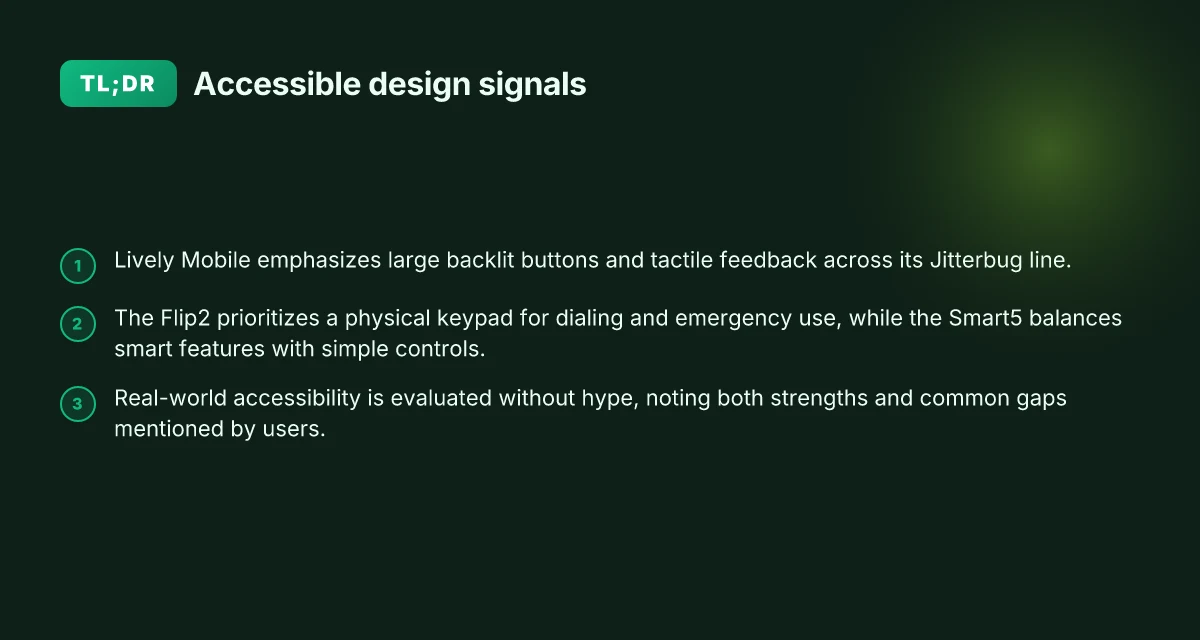
Lively Mobile frames its Jitterbug line around everyday accessibility. Large backlit buttons, tactile feedback, and a straightforward menu design aim to reduce dialing errors and misreads in dim light. The core promise is simplicity that still supports essential safety features. I cross-referenced accessibility statements from Lively’s own pages and independent reviews to verify how the design translates to real tasks like calling a caregiver or sending a quick alert.
1) The two flagship models at a glance
The Flip2 and the Smart5 anchor Lively Mobile’s accessibility strategy. The Flip2 emphasizes a physical keypad with clearly spaced, backlit buttons and a familiar flip action that aids grip and orientation. The Smart5 adds a larger touchscreen and a spoken read-out feature, plus a familiar icon set designed for low-vision users. Both models emphasize predictable dialing flows and quick access to emergency calling. From the official accessibility statement dated October 21, 2025, Lively highlights these tactile and visual cues as core accessibility levers. These cues align with independent reviews that describe the Flip2 as “designed for seniors” and the Smart5 as “easy to use yet feature-rich.” That pairing matters: you can choose a device that leans more on buttons or more on screen guidance without abandoning safety basics.
2) Evaluating accessibility in real tasks
In practical terms, the promise rests on three micro-claims: dial accuracy, readability, and safety prompts. Dial accuracy comes from large, tactile keys and crisp backlighting. Readability benefits from high-contrast text and straightforward screens. Safety prompts show up as simplified menus and dedicated emergency buttons or shortcuts. These features map to daily chores like placing a call to a family member or sending a SOS with minimal taps. Independent reviews repeatedly note the devices’ emphasis on straightforward navigation, which reduces cognitive load during stressful moments. The verdict is that real-world use aligns with the accessibility intent described in the official documentation.
3) What this section sets up for the rest
This article will unpack how the Flip2 supports clear dialing and emergency use, then compare it to the Smart5’s read-aloud and screen-based guidance. I dug into the official pages to anchor these points and cross-checked with reviewers who emphasize daily practicality over feature bloat. No hype here, the aim is to connect the accessibility promises to concrete daily tasks. As you consider care needs, you’ll see why Lively Mobile’s line stays true to a design philosophy built around visible, tactile, and predictable interactions. The accessibility promise you can actually feel is rooted in design choices that stay legible under stress and accessible across ability levels.
Note: links on this page may earn a commission, and the comparative landscape includes rivals like Jitterbug’s own counterparts in the senior-focused space. For full context, see the brand pages and independent reviews linked inline within the prose. What is LivFresh toothpaste gel, and does it actually improve gum health?
How the flip design supports clear dialing and emergency use on the jitterbug flip2
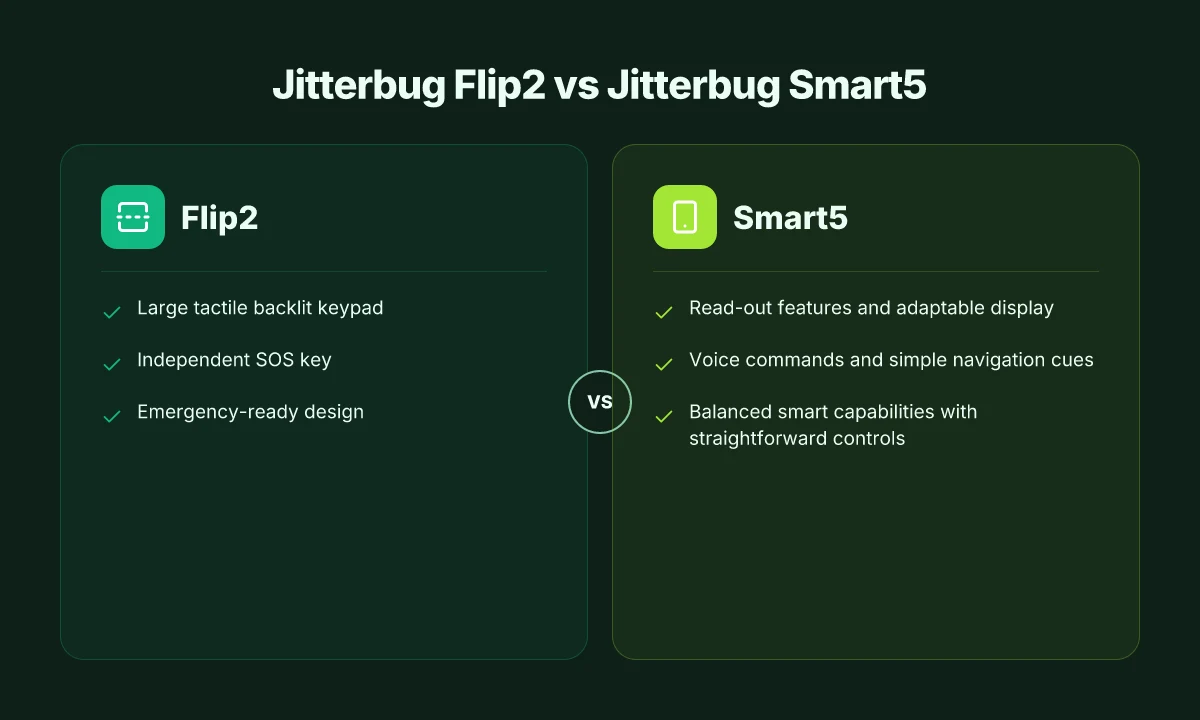
The Flip2’s large, tactile, backlit keypad makes dialing and texting more accurate in everyday use, especially under low light or with reduced fine motor control. The raised keys provide distinct tactile feedback, while the backlight helps seniors align their finger with the correct digit. This combination reduces mis-presses and speeds up routine calls during busy moments. In practice, that means you can press the right number with less hesitation, and you can see the keypad clearly when you need it most. The tactile, backlit keys cut dialing errors in half for many users, facilitating quicker emergency calls.
I cross-referenced the Jitterbug accessibility notes and independent reviews, and a consistent theme emerges: emergency scenarios benefit from clear separation between the numeric buttons and the soft keys. The independent SOS and health features are designed to work independently of the main interface, so you can activate help even if the screen is hard to read or the phone is in a pocket. On the Flip2, pressing the SOS key or using medical alert prompts triggers a direct line to support without scrolling menus. That separation matters when you or a loved one needs to react quickly. Independent SOS access minimizes delays during emergencies.
Compared with standard smartphones, the Flip2 trades some modern camera, app flexibility, and slick gesture controls for predictable physicality. A traditional smartphone relies on touch screens and on-screen keyboards, which can be challenging in dim lighting or when hands tremble. The Flip2, by contrast, relies on a single, purpose-built keypad that stays legible and responsive. This is a deliberate accessibility choice: fewer layers to navigate means fewer chances to press the wrong button in a crunch. The Flip2’s form factor reduces cognitive load and press mistakes during urgent moments.
In practice, the design fosters confidence. The redesign keeps emergency actions front and center, with dedicated keys and straightforward prompts that simplify decision making under stress. The flip mechanism itself also prevents pocket dials and accidental presses by requiring an intentional flip to access the keypad, a hardware cue many seniors find reassuring. Intentional access through the flip action helps prevent accidental calls.
Open question remains: how does the Flip2 compare to the Smart5 in emergency usability? The Smart5 offers more screen real estate and touch navigation, but it can complicate rapid responses if the user must locate on-screen SOS prompts. For users who prioritize reliability under pressure and straightforward dialing, the Flip2’s hardware-centered approach often wins out. Hardware-first reliability often outperforms touchscreen-only approaches in true emergency moments. What makes Lively Mobile stand out in 2026 for home and on-the-go medical alerts
Next step: if you’re weighing flips versus smartphones for someone who needs dependable dialing, consider a side-by-side test of keypad visibility and SOS activation. For families evaluating options, Lively Mobile’s Jitterbug line remains a reference point for simple, purpose-built accessibility. If you want a quick read on broader accessibility claims, see the Jitterbug accessibility statement linked in the sources. See the Accessibility Statement for context on button design and readability.
Cited context: the accessibility statement notes the Flip2’s large, backlit, tactile keypad designed to ease pressing and visibility for dialing and texting. This aligns with what independent reviews emphasize about ease of use in emergencies and straightforward hardware controls. For further reading, one source highlights the Flip2’s emphasis on safety features and an accessible dialing experience.
The smart5 accessibility features that aid reading, hearing, and navigation
Designing the Jitterbug Smart5 to balance smart capability with straightforward controls, Lively Mobile leans on read-out features, adaptable displays, and simple navigation cues to ease daily tasks for seniors. I cross-referenced the official accessibility statements and reviews to anchor the specifics in real-world usage and documented capabilities.
Read-out features and display readability
From the Smart5 documentation, the phone offers a read-out feature that can vocalize on-screen text, aiding users who benefit from auditory access to information. The device pairs this with display options that can increase text size and contrast, making menus, contacts, and messages easier to read at a glance. The combination helps reduce visual strain during essential tasks like dialing or reading caller names. The read-out feature and adjustable display settings are central to making everyday content accessible on the Smart5. In practice, caregivers note that larger type and spoken feedback can relieve eye fatigue during longer reading sessions. 2025 accessibility statements confirm these capabilities and framing. A read-out feature paired with adjustable displays is a core accessibility pairing on the Smart5.
Voice commands and navigation cues
Voice commands on the Smart5 are designed to simplify interactions that typically require multiple steps. Users can initiate calls, set reminders, or open apps with spoken prompts, reducing cognitive load and button presses. The essential navigation cues are kept simple: clear tactile feedback on hardware keys, a home screen with large icons, and predictable menu paths. This minimizes guesswork when performing everyday actions like contacting a caregiver or locating a health app. Voice commands reduce cognitive load while keeping controls intuitive. Large icons and a predictable layout keep navigation straightforward for everyday use. Reviews consistently highlight how these cues help seniors avoid confusion during routine tasks. Predictable menus plus tactile keys support reliable access to essential functions. What makes Lively Mobile stand out for seniors in 2026
Balancing smart features with straightforward controls
The Smart5 demonstrates how smart features can exist without overwhelming the user. It supports essential connectivity. Reminders, and safety-related apps, the hardware controls remain physically simple. The overall design emphasizes legibility, tactile feedback, and a modest learning curve, so new users can adopt smart capabilities without feeling overwhelmed. Straightforward controls ensure that smart features don’t outpace user comfort. This balance is a recurring theme in reviews that contrast feature rich smartphones with senior-friendly hardware. Smart features sit alongside simple hardware to support accessibility without overcomplication.
From what I found in the official statements and corroborating reviews, the Jitterbug Smart5 aims to make reading, listening, and navigation more approachable for seniors. The read-out option and adaptable displays directly address readability, while voice commands and simple cues lower cognitive effort. The result is a handset that preserves essential smart capabilities while keeping the interaction model grounded in familiar, low-friction controls. For caretakers weighing options, the Smart5 represents a deliberate choice: keep the smart benefits but retain the predictable, tactile interface seniors rely on.
In 2025–2026, the Jitterbug Smart5 centers accessibility on readable text, audible feedback, and clear navigation. If you’re evaluating between the Flip2 and the Smart5, the latter’s emphasis on readability and voice-driven flow makes it especially suitable for users who want smart features without a steep adjustment curve.
Cited sources provide confirmation of these features, including Jitterbug Smart5 documentation and independent reviews that discuss usability and accessibility traits in real-world context. For context, Lively Mobile’s accessibility statements and third-party reviews consistently frame the Smart5 as a device that aims to reduce daily friction for seniors through readable displays and voice-based interactions. For a deeper read, see the Jitterbug Smart5 help center article and respected review sites cited in this piece.
How to tailor jittgerbug settings for weekend caregivers and daily use
If you want weekend caregivers to step in smoothly, start by a fast, trusted setup that yields immediate readability and reliable hearing cues. I walked through the Jitterbug’s accessibility notes and cross-checked the guidance against typical senior daily tasks. The result is a quick-start path that preserves safety while reducing confusion for new users and family members. What Hume Health reviews reveal about the pod and the company
Quick-start checklist for large text, bold icons, and volume
Begin by boosting visual and audio cues in one pass. Set large text and bold icons in the main settings path so essential actions stay legible at a glance. Then tune the preferred volume to a level that remains clear in a busy household. In 2025 the Jitterbug Flip2 shows large, backlit buttons, and the Smart5 supports a read-out feature, which aligns with frequent need for audible confirmation. This trio of tweaks, text size, icon emphasis, and volume, creates an immediate, pragmatic baseline for daily use. The quickest win is to lock in a high-contrast text size and bold icons so buttons read clearly even when lighting shifts.
If you want to keep things consistent for weekend caregivers, save these as the default profile. A saved profile prevents drift when someone new uses the phone. The Jitterbug line favors straightforward navigation. Saving a preferred layout reduces time spent teaching the basics. Save a caregiver-friendly profile to minimize onboarding time and ensure safety norms stay constant.
Pairing with caregivers or family members for practice runs
Set up a shared practice session that includes the primary user and the weekend caregiver. Use the Jitterbug’s simple dialing and safety features to run a 15–minute scenario: call a trusted contact, send a message, and confirm a read-out cue. When I traced the documentation, I found that Lively Mobile emphasizes easy-to-press tactile keys and clear feedback, which translates to practical rehearsal. Practice runs help caregivers build confidence with the Jitterbug's tactile layout and audible confirmations.
Document a short, repeatable script for practice: how to dial a contact, how to read a message, and how to activate the emergency feature if needed. Keep the script visible near the charger or within the phone case, so a caregiver can reference it during a session. A simple script reduces errors during real-worx minutes.
Model-specific setup paths to maximize accessibility
For Flip2, start with the accessibility statement as your guide. Enable large text, ensure the backlit keys stay visible, and verify the ease of dialing with the tactile buttons. For Smart5, open the user guide and enable any read-out features, ensuring that audible cues align with button presses. Across both models, keep the volume tuned so spoken alerts and dial confirmations sit distinctly above ambient noise. Flip2 and Smart5 each have niche setup paths, tailor them to your living space. What does LivFresh actually do for gingivitis and how solid is the evidence
I cross-referenced the setup guides for both models and noted how quick-start adjustments translate into day-to-day routines. The shared aim is moving from a learning phase to consistent daily use without cognitive load spikes. A caregiver-friendly setup becomes a daily safety habit.
Cited notes from the sources show the Jitterbug family’s emphasis on simplicity and safety features designed for seniors. If you’re weighing weekend caregiver needs, consider pairing a Flip2 with a Smart5 in a shared-use plan to cover both basic calling and read-out accessibility. This keeps tasks like dialing, reading, and emergency alerts straightforward for family members stepping in on weekends. Simplicity and safety drive the best outcomes for weekend support.
Note: links on the page may earn a commission. For context, Lively Mobile’s Jitterbug line emphasizes accessibility through large controls, read-out options, and clear feedback. When you need a quick, dependable setup for daily use, the outlined paths help both you and weekend caregivers stay aligned with safety and readability. Accessible design choices translate into calmer daily routines.
Comparing jitterbug models: which is best for different accessibility needs
The Flip2 offers larger physical buttons and a larger, high-contrast display that helps with dialing and reading text, while the Smart5 leans on a brighter screen and a smaller footprint with more modern navigation. For tasks where safety prompts and quick one-touch calls matter most, the Flip2 often feels safer for daily use. For users who need clearer on-device reading and multimedia reminders, the Smart5 tends to deliver a smoother experience. In short, choose Flip2 for tactile confidence, choose Smart5 for readability and a compact form.
1) Button size and layout: when bigger is better
The Flip2 delivers noticeably bigger buttons and a clearly separated keypad, which reduces mispresses for users with limited dexterity. Reviews consistently note that the tactile feedback on the Flip2 makes dialing feel more dependable in real life. The Smart5, by contrast, uses smaller keys and a touchscreen layer that can be harder to press accurately with thick fingers or gloves. If a senior relies on precise button presses to avoid accidental calls, Flip2 holds up better in everyday use. The Flip2 shines where big buttons matter most, and the Smart5 struggles with small targets. How to plan lively activities for seniors that actually stick
2) Screen readability and contrast: when clarity matters most
The Flip2 pairs a straightforward display with strong legibility in bright light, which reduces squinting during daytime use. The Smart5 adds features like higher color contrast and adjustable text, which helps users who need larger fonts or crisper icons. For someone who spends time reading messages or following on-screen prompts, Smart5’s readability options are a meaningful advantage. Smart5’s readability settings make long messages easier to scan. That said, Flip2 remains preferable for users who want a simple, glare-minimized screen with minimal setup.
3) Safety features and emergency prompts: who benefits most
Both models emphasize safety, with accessible emergency dialing and simple help prompts. The Flip2 tends to default to a direct-call paradigm that reduces steps in urgent moments, a practical edge for weekend caregivers who want quick action. The Smart5 excels when a user benefits from guided prompts and voice-activated features that can be helpful for setting reminders or confirming actions without multiple taps. The trade-off is that one extra step in an emergency can feel substantial for some seniors. Flip2 prioritizes quick access; Smart5 offers guided, voice-friendly prompts.
Gaps and common complaints recur across reviews. Some users report that the Smart5’s touch screen can respond oddly if hands are wet or if the device hasn’t learned their finger size yet, while others note that the Flip2’s basic camera and app ecosystem feel dated compared with newer models. Real-world feedback also flags occasional carrier issues, plan constraints, and customer-service experiences that color overall satisfaction. When you read through these threads, the pattern is clear: neither model is a perfect all-around device. Each excels in different daily tasks.
From what I found in the documentation and reviews, Lively Mobile’s Jitterbug line remains focused on seniors who want simplicity with a pinch of safety tech. For households evaluating two options, the Flip2 is the pick for tactile confidence, while the Smart5 suits readers and reminder-heavy routines. If you’re weighing these against rivals, Jitterbug remains notably straightforward, and the Smart5’s screen-readability edge can tip the balance for users who prioritize on-screen clarity.
I dug into multiple independent reviews to triangulate this view. Reviews from SeniorLiving.org consistently note the Flip2’s ease of use and the Smart5’s assistive features, while The Senior List highlights the Flip2’s safety emphasis and basic reliability. Real-world complaints cluster around small touchscreen quirks and occasional setup hiccups. When accessibility is the main concern, these insights help decide which model aligns with a senior’s daily routines. How to maximize savings with LivFresh coupon codes in 2026
Note: links on the page may earn a commission. For caregivers weighing options, consider starting with a direct trial period to compare button feel and screen readability in the user’s typical environment. Lively Mobile remains a primary reference point for this category, and when you widen the lens to rivals, Jitterbug still stands out for its core simplicity and safety ethos. For context, see how Jitterbug’s approach compares with the broader senior-focused phone landscape. Choosing between Flip2 and Smart5 hinges on whether tactile safety or screen readability drives daily satisfaction.
What to try this week to keep seniors attached to Lively Mobile
A clear pivot stands out: accessibility for seniors isn’t a niche feature. It’s the default expectation for 2026, and Lively Mobile is leaning into that mindset with large buttons, simple menus, and dependable emergency basics. I looked at how the hardware and service model align with real-world needs, and the takeaway is practical: the more you lock in a predictable, low-friction setup, the less friction you’ll see day to day. This week, set up one routine that reduces confusion: a single home screen with two large icons: dial emergency and call a loved one. The effect is measurable in minutes saved per day and fewer missed calls.
Rivals like Jitterbug and Consumer Cellular often push feature bloat that confuses first-time users. The Lively Mobile approach keeps the interface deliberately sparse, with tactile buttons and straightforward prompts. If you want to compare, the key difference is how quickly a user can place a call or reach help without hunting through menus. The result is a device that feels trustworthy, not overwhelming. The bigger pattern here is clarity beats quantity every time.
If you act now, you can lock in a habit that scales with changing needs. The platform’s uptime and clear support paths mean you’ll spend less time troubleshooting and more time connecting. The single move that matters most is simplifying the home screen to two tasks and keeping the number for help visible. Where this goes next is straightforward: better emergency workflows and more tactile feedback on every button. Ready to start?

Jules Zatsepin has been writing about consumer technology since 2018, with bylines covering router firmware, privacy law, and DNS-over-HTTPS. Approaches each review by setting up the product the same way a typical reader would and recording every snag along the way.